API Keys
This document describes the process required to register an API Key from either any of our API providers. This document does not cover advanced API key management, restrictions and security. For advanced configuration, please refer to the vendor's documentation. Each customer can decide to use either provider for their services.
Multiple main options can be configured in Eftsure inside D365: Gov Codes, Maps, Places autocompletion
You can use any combination of providers for these separate services, although it is logical to use a single provider for all maps services. At the time of writing, the following services are supported:
- ABN, NZBN, UEN, VIES, HMRC UK
- Bing Maps & Bing Suggestions
- Google Maps & Google AutoComplete
- Mapbox Maps
Government Code APIs
VIES
Create an account at :
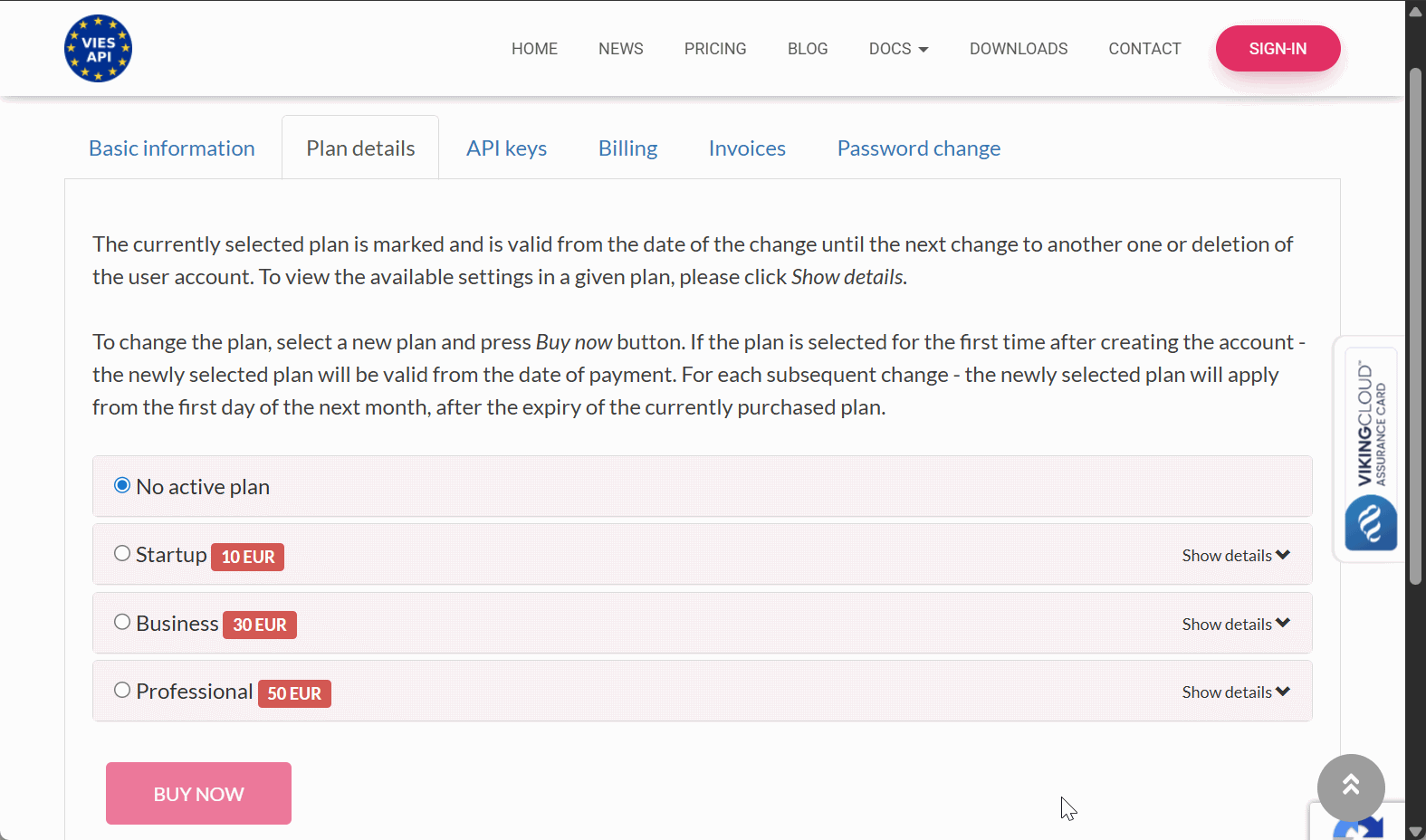
Go to Plan details, select and purchase the appropriate plan.
Go to API Keys,
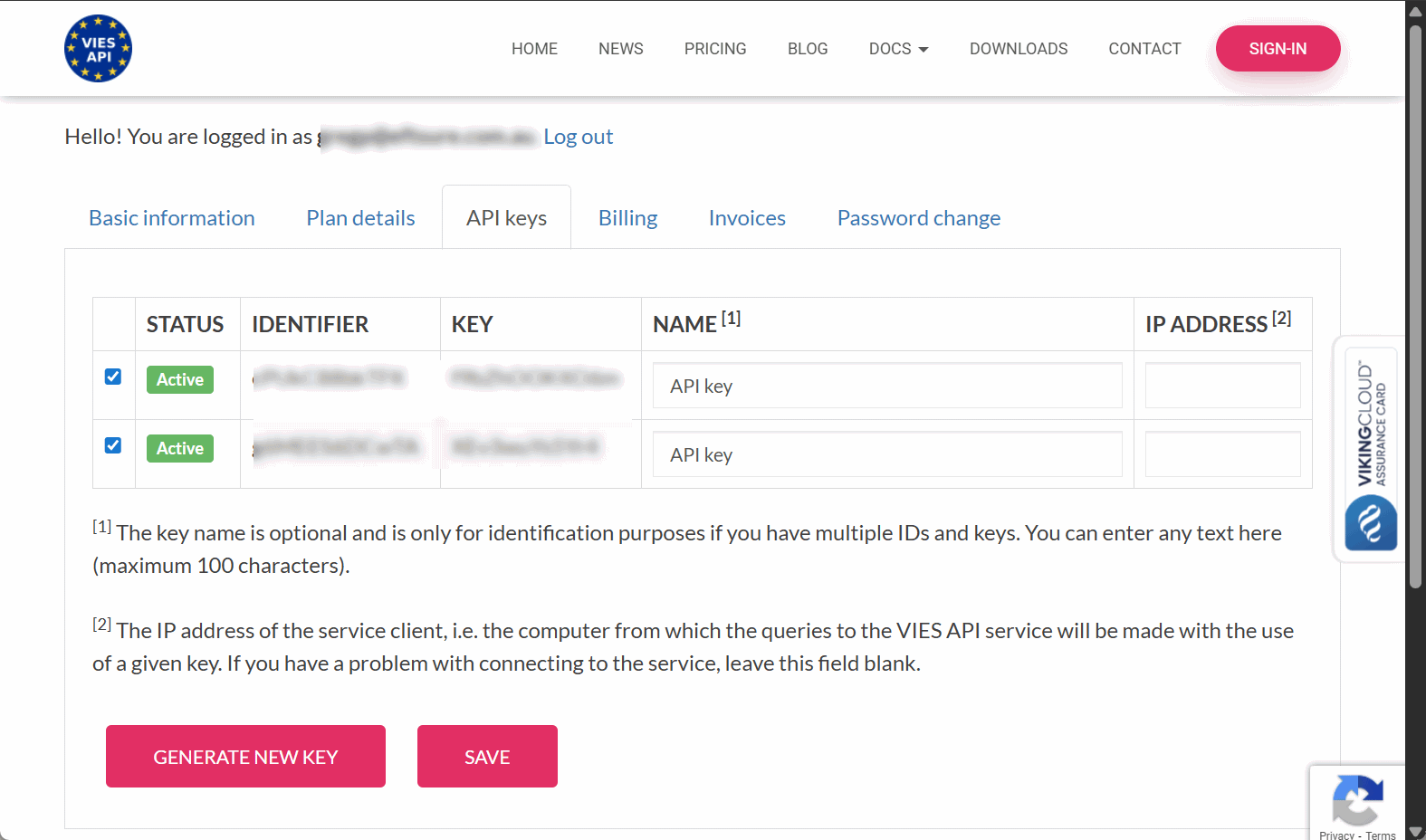
Click Generate new key and copy / paste the identifier and key into Eftsure parameters > GovCode > Europe > VIES
HMRC UK
Create a new account at developer hub
Create a new application
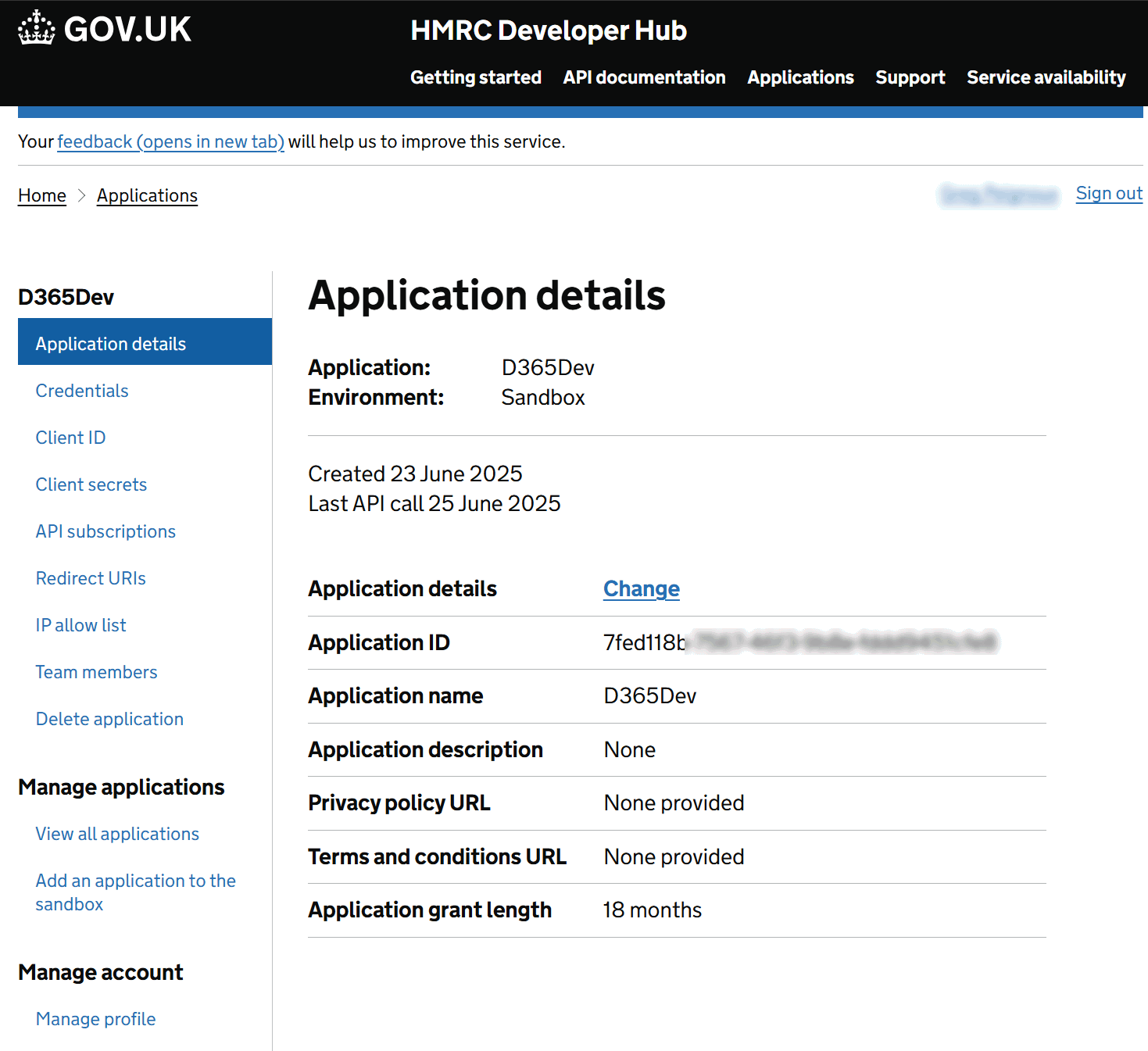
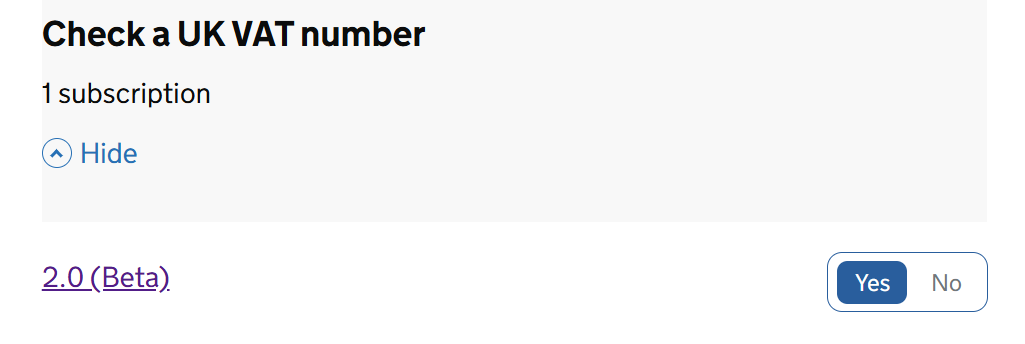
Create a client Id and Secret, subscribe to Check a UK VAT Number
ABN - Australia
Go to WebServicesAgreement
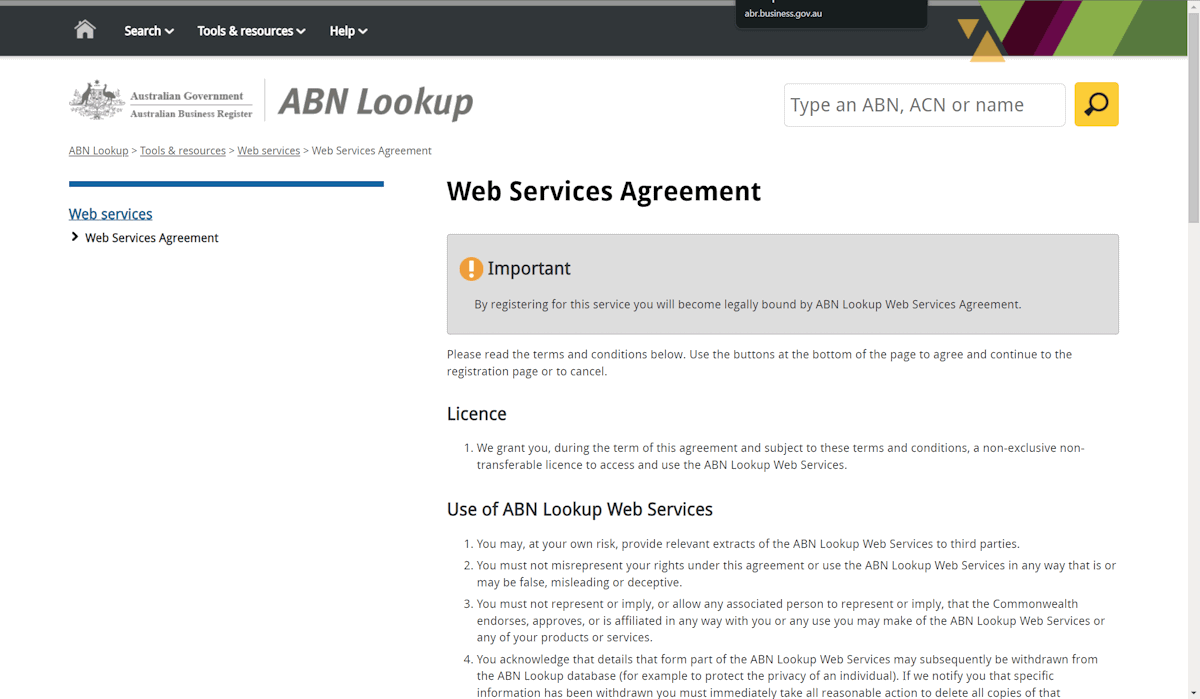
Accept Terms and Conditions
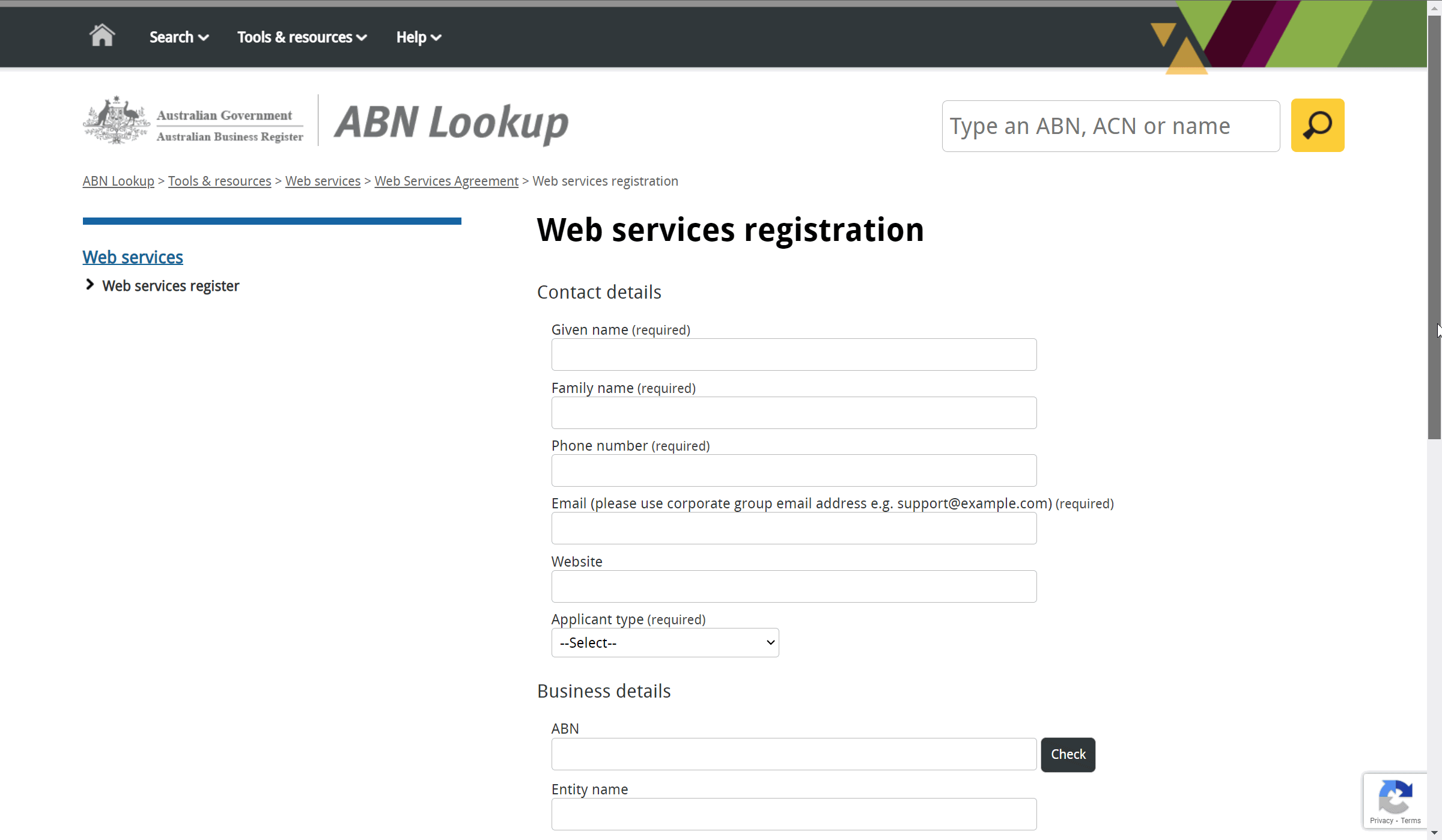
Complete your registration information
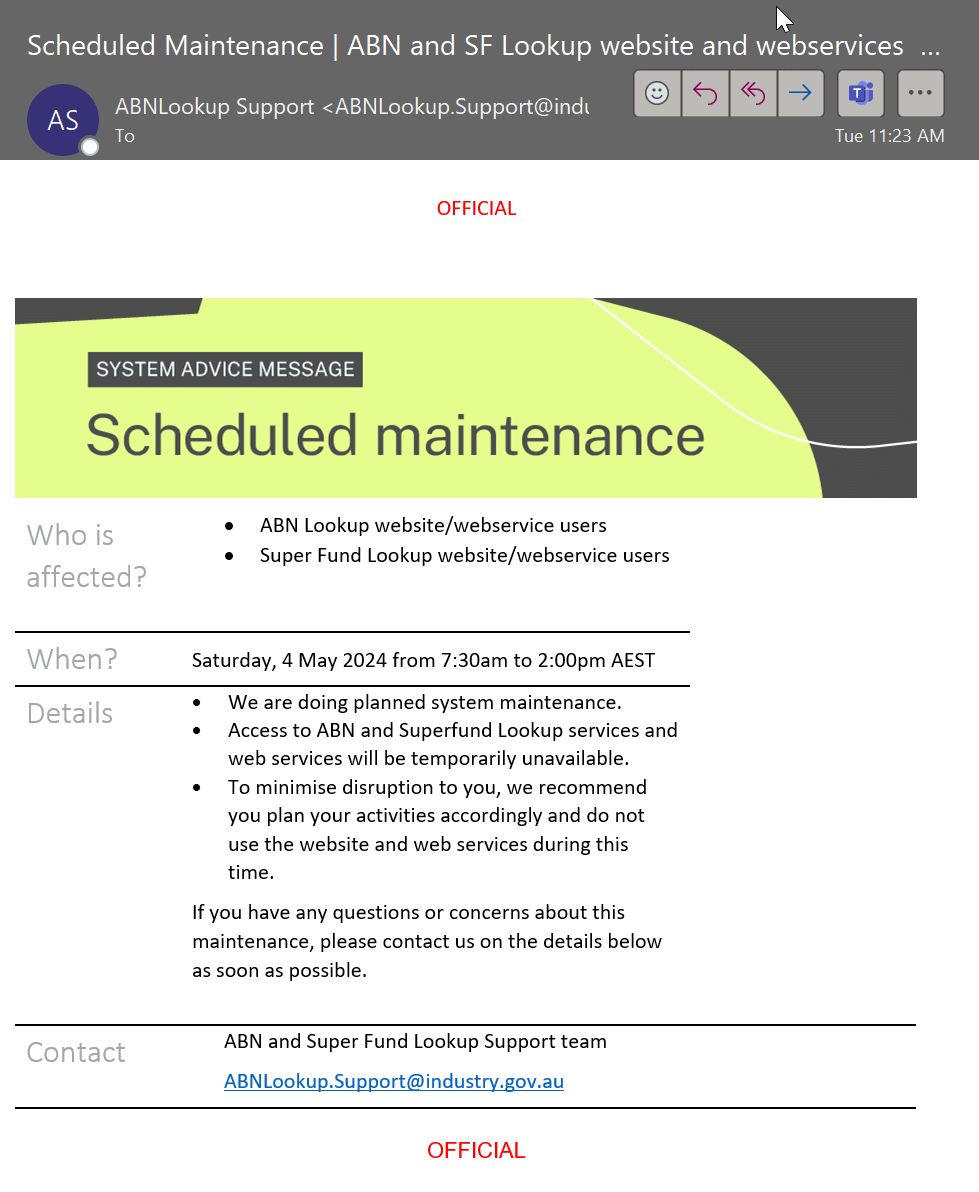
Your registration should be validated withing 24-48h, and the registrant will receive ABR notifications and scheduler maintenance such as:
NZBN - New Zealand
Login to portal.api.business.govt.nz/
Go to portal.api.business.govt.nz/product#product=nzbn
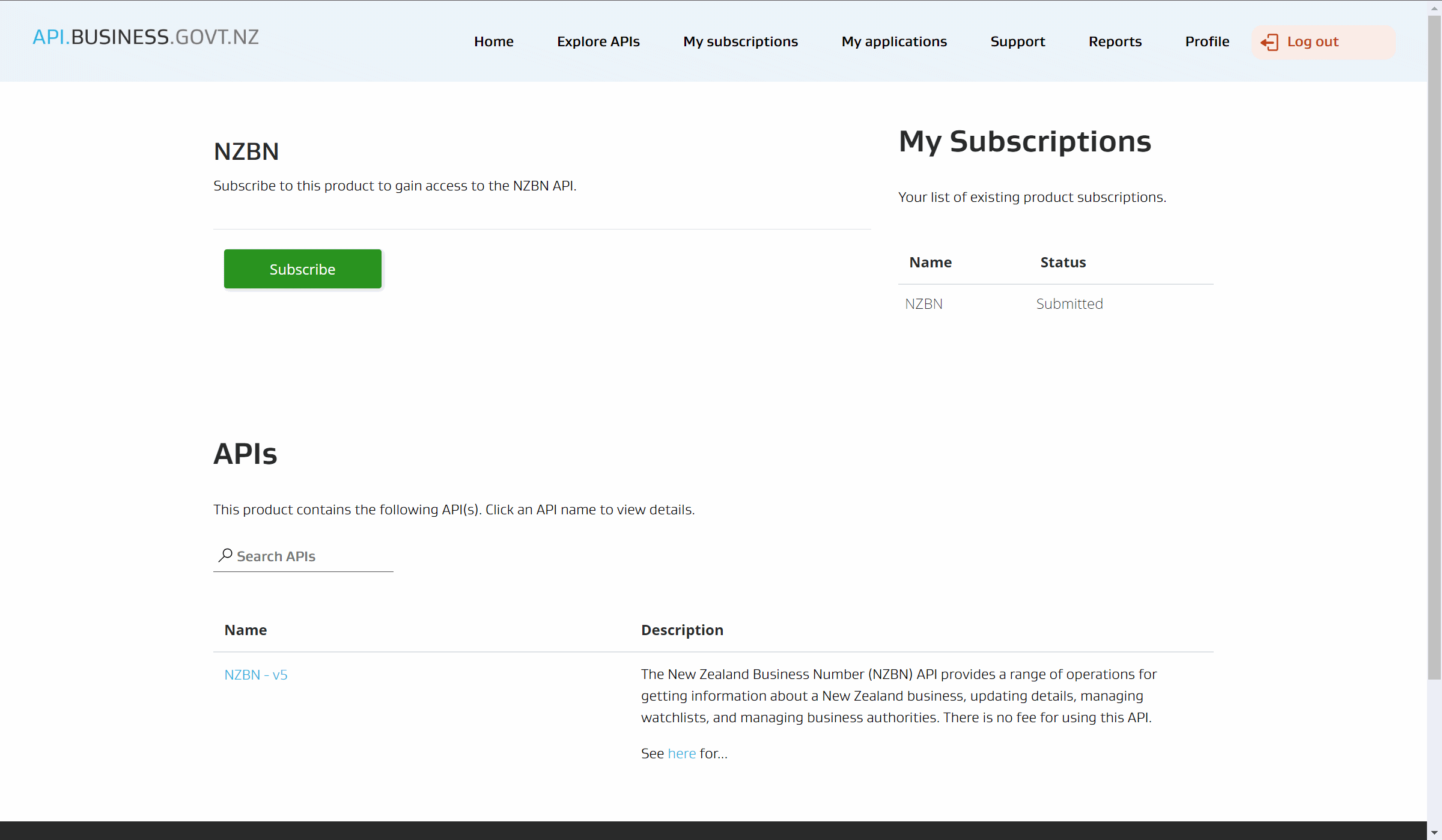
Click Subscribe button in Green.
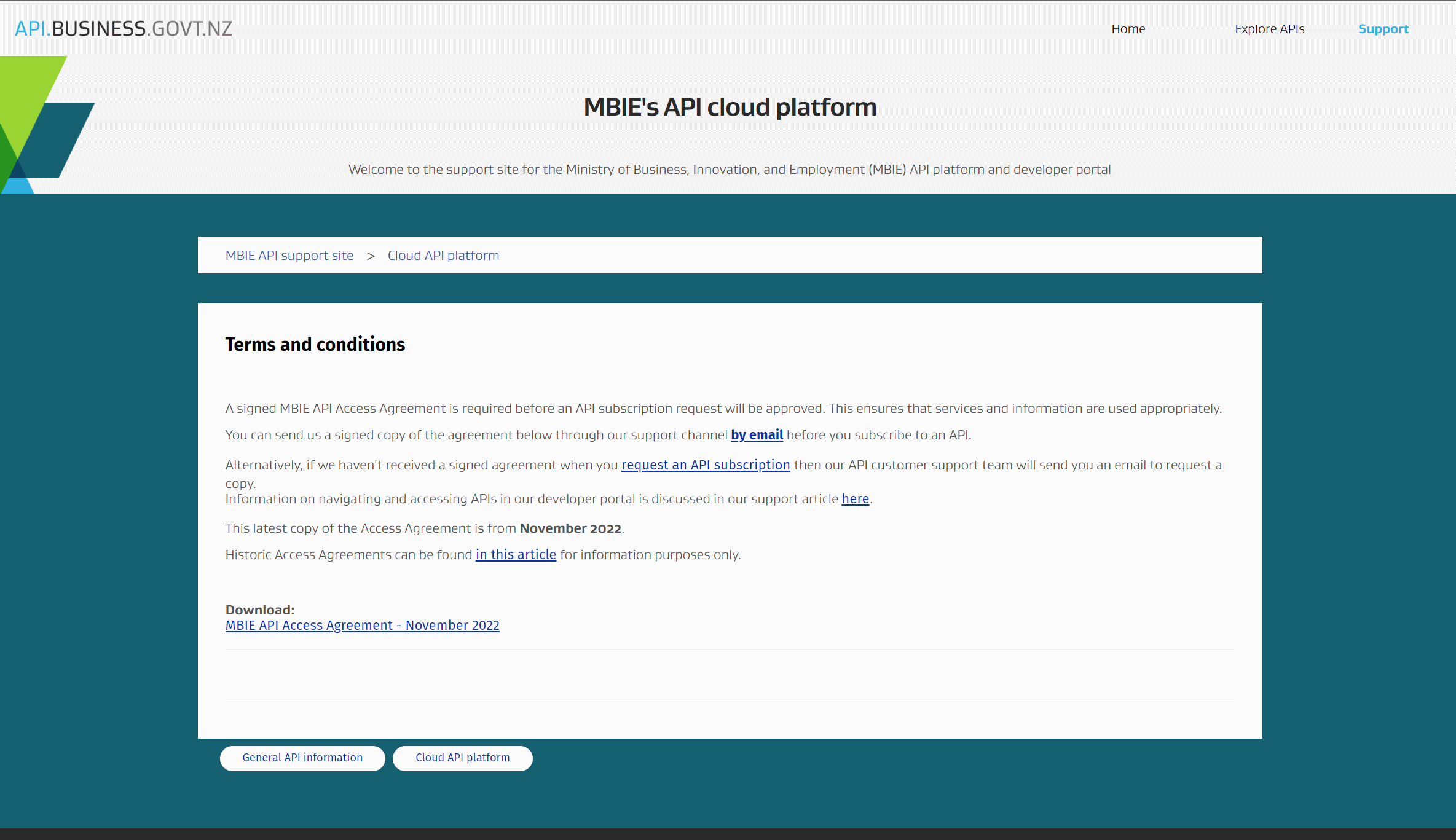
Go to Terms and Conditions
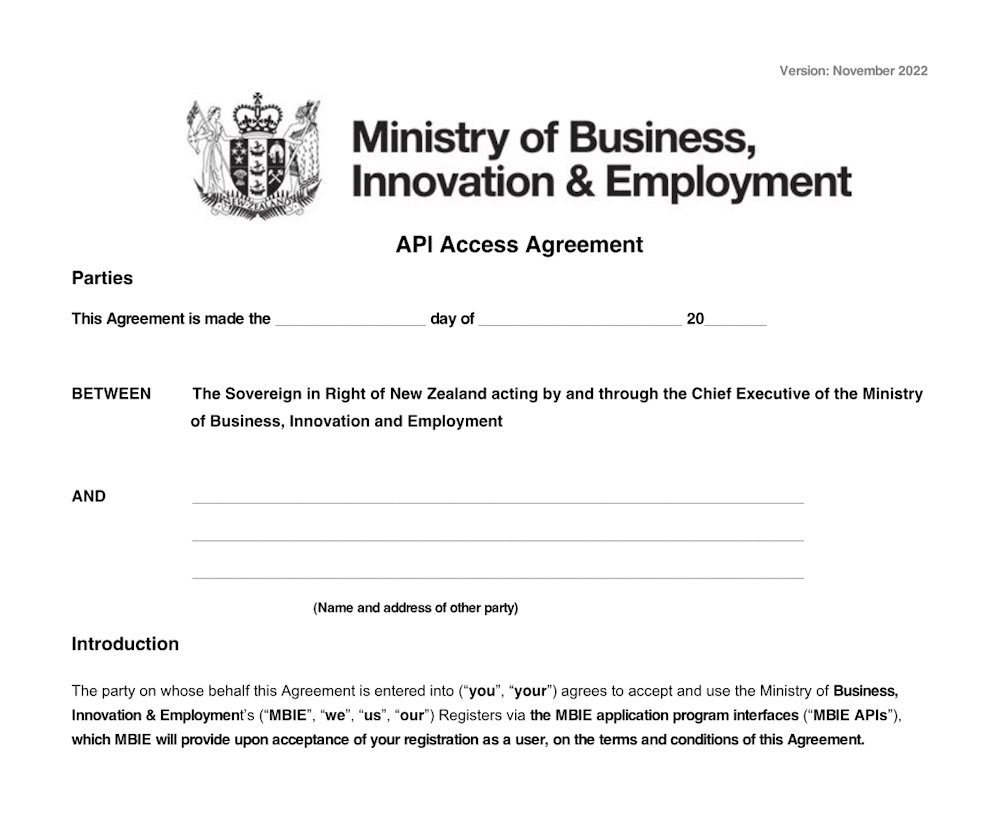
Return a signed copy of the MBIE API Access agreement by email:
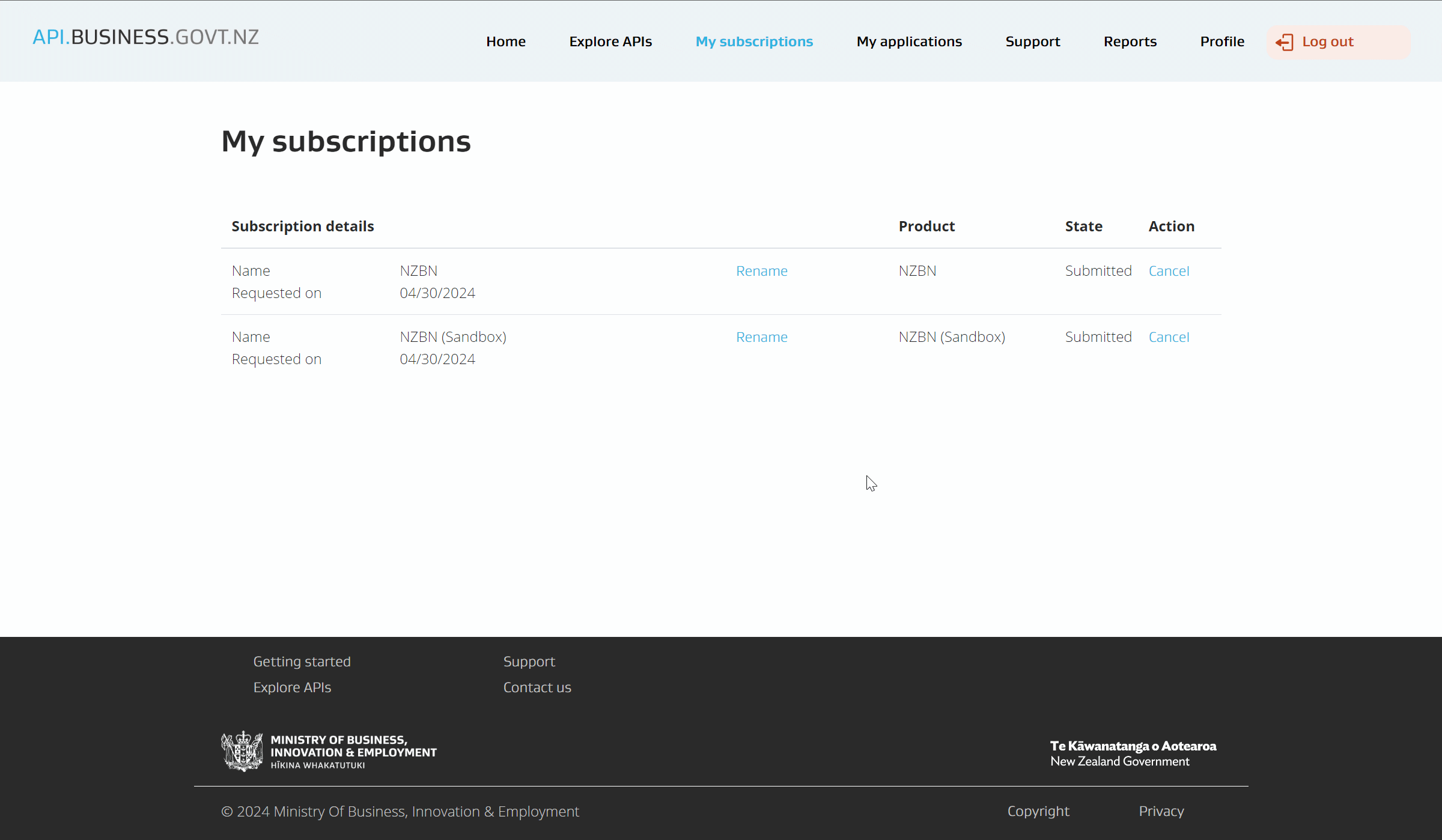
Once Subscription is approved, then the API Keys will be available in your subscriptions.
UEN - Singapore
UEN service is provided by ACRA - www.acra.gov.sg/
The UEN service uses OAuth 2.0 with Token generation to fetch data from ACRA webservices.
To use this service, you will need to purchase a Query package.
Go to www.bizfile.gov.sg/apimarketplace and subscribe to the Entity Information Query APIs.
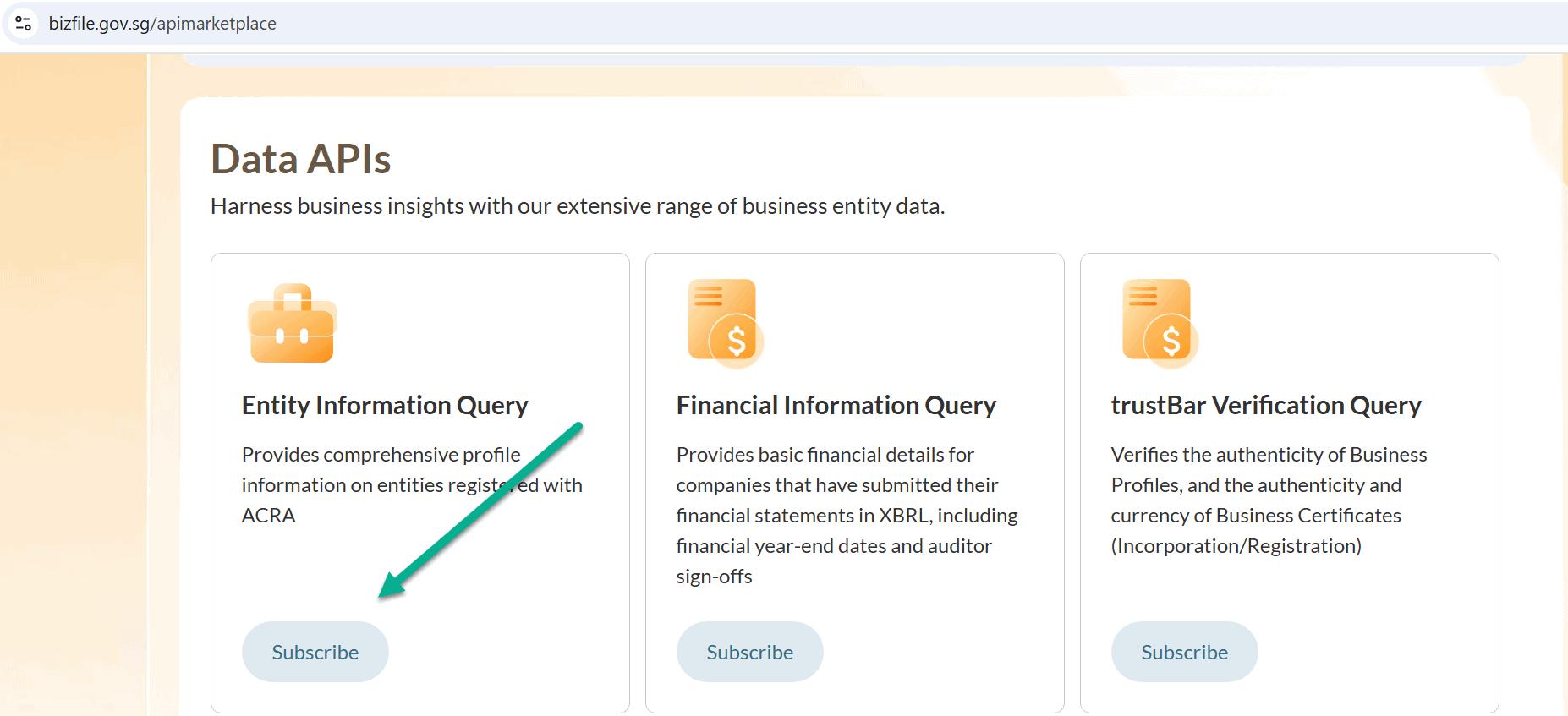
www.bizfile.gov.sg/apimarketplace/categories/data-api/eiq
Purchase of the query packages below:
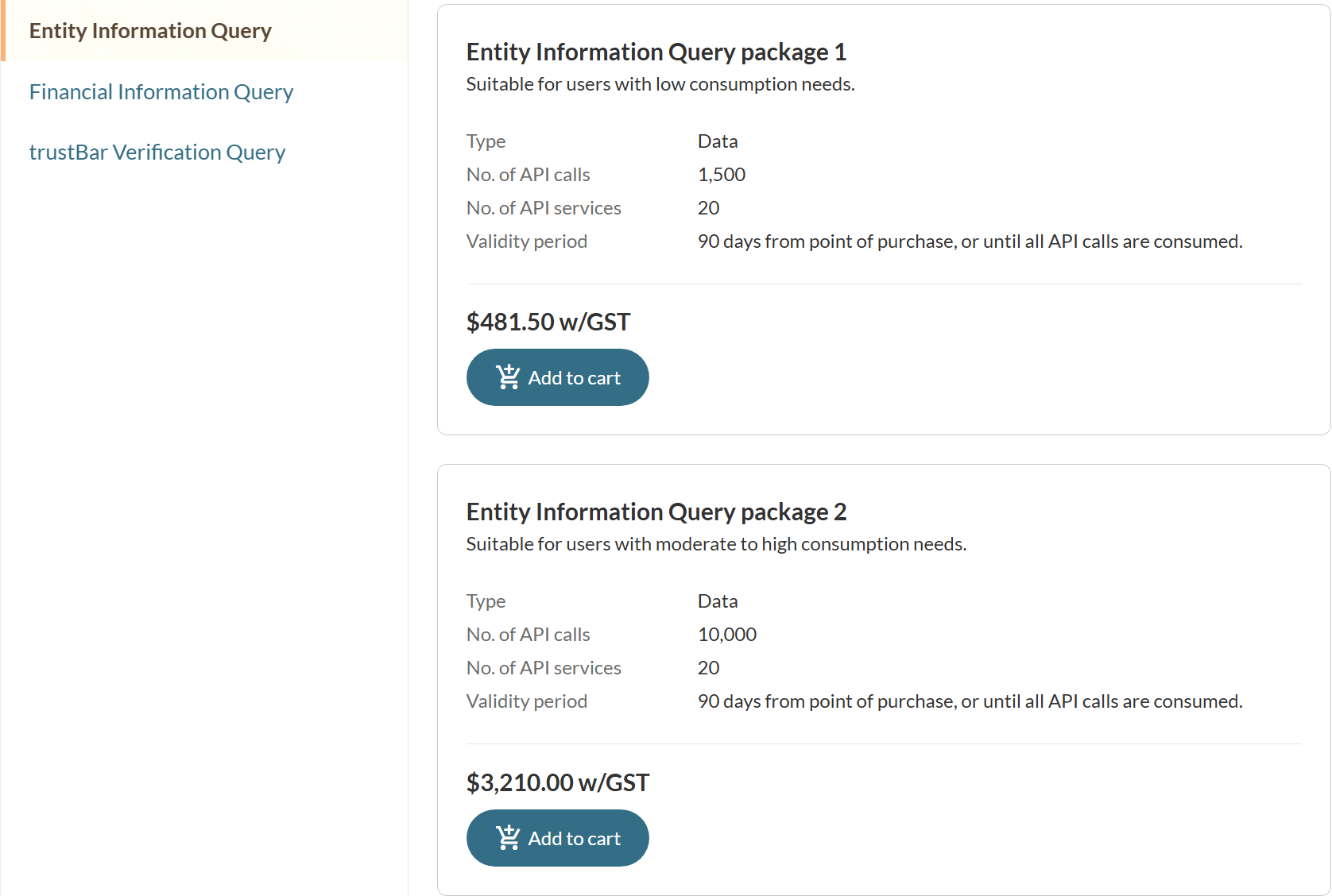
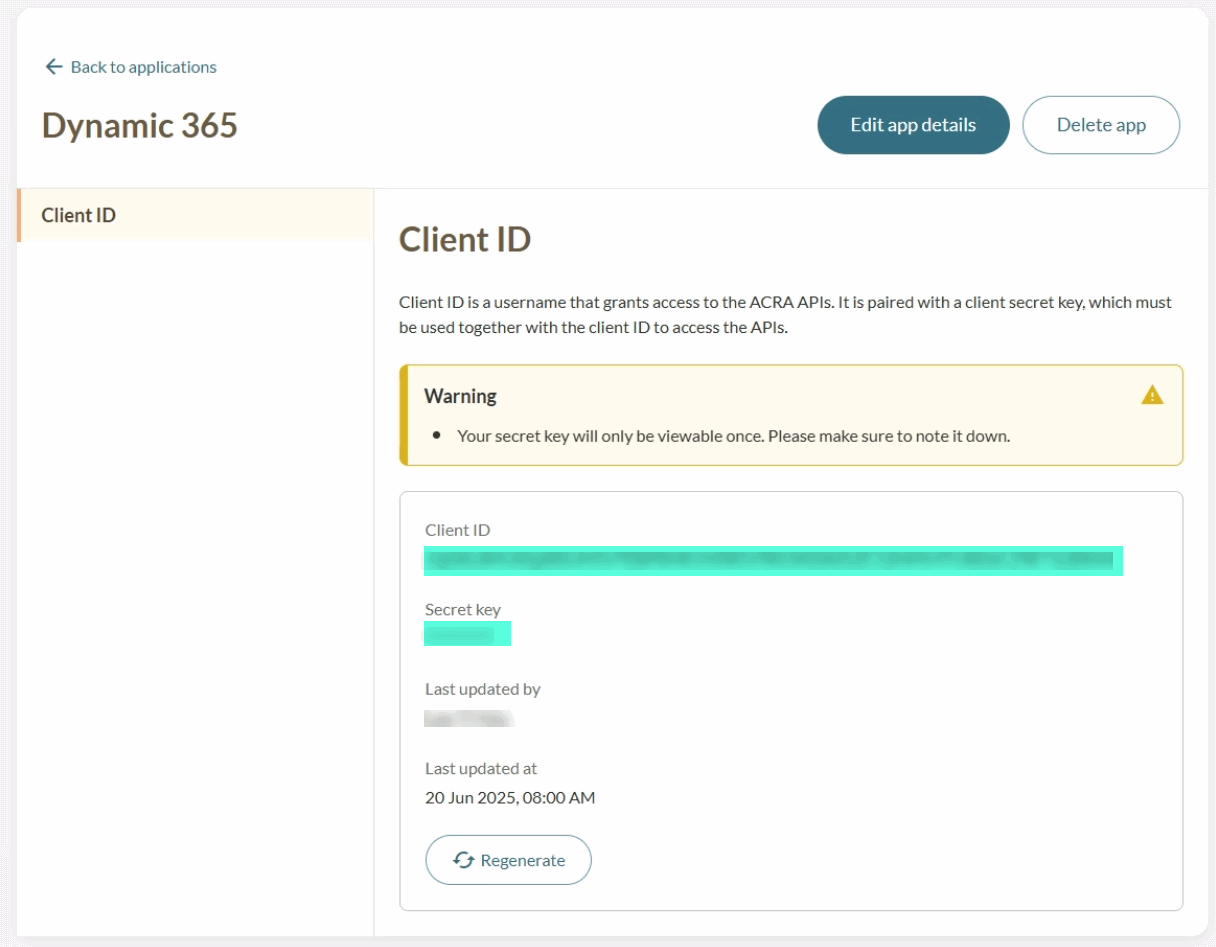
After purchasing the above packages, go back to bizfile and configure a new application for production.
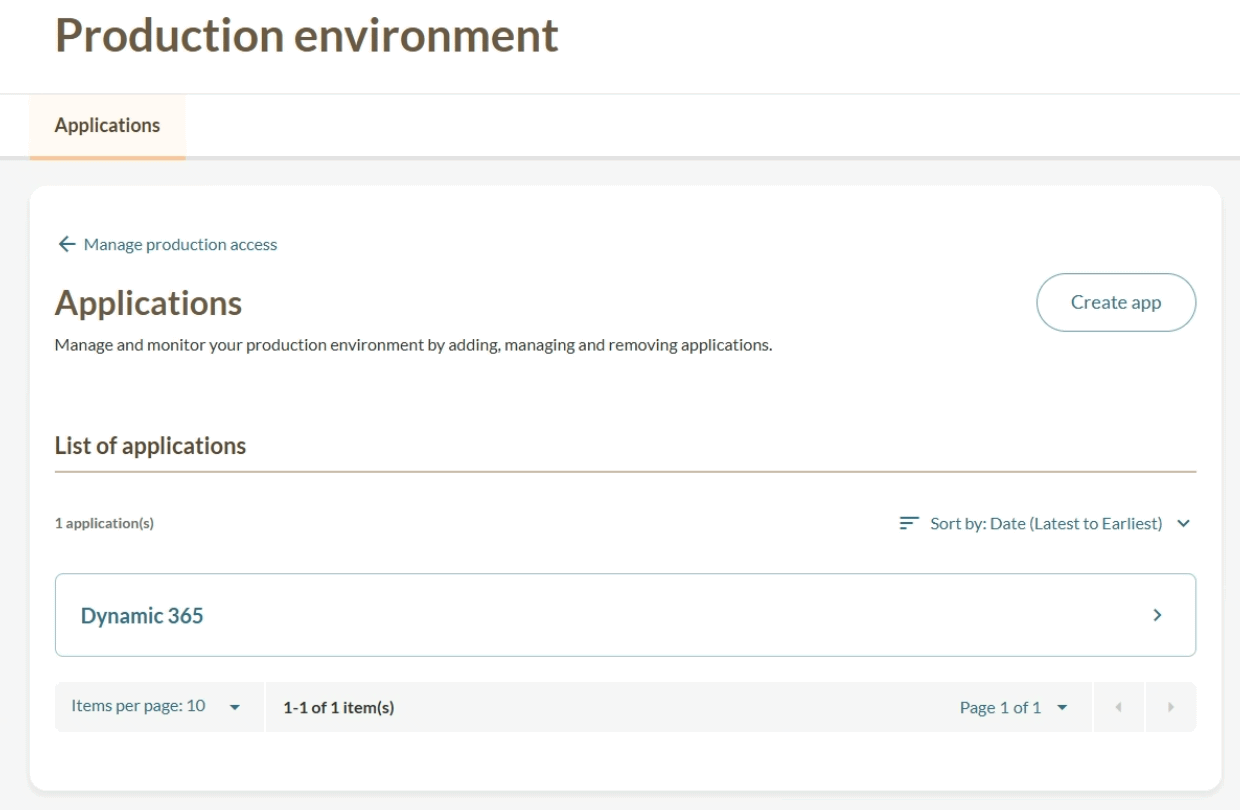
Click Create app
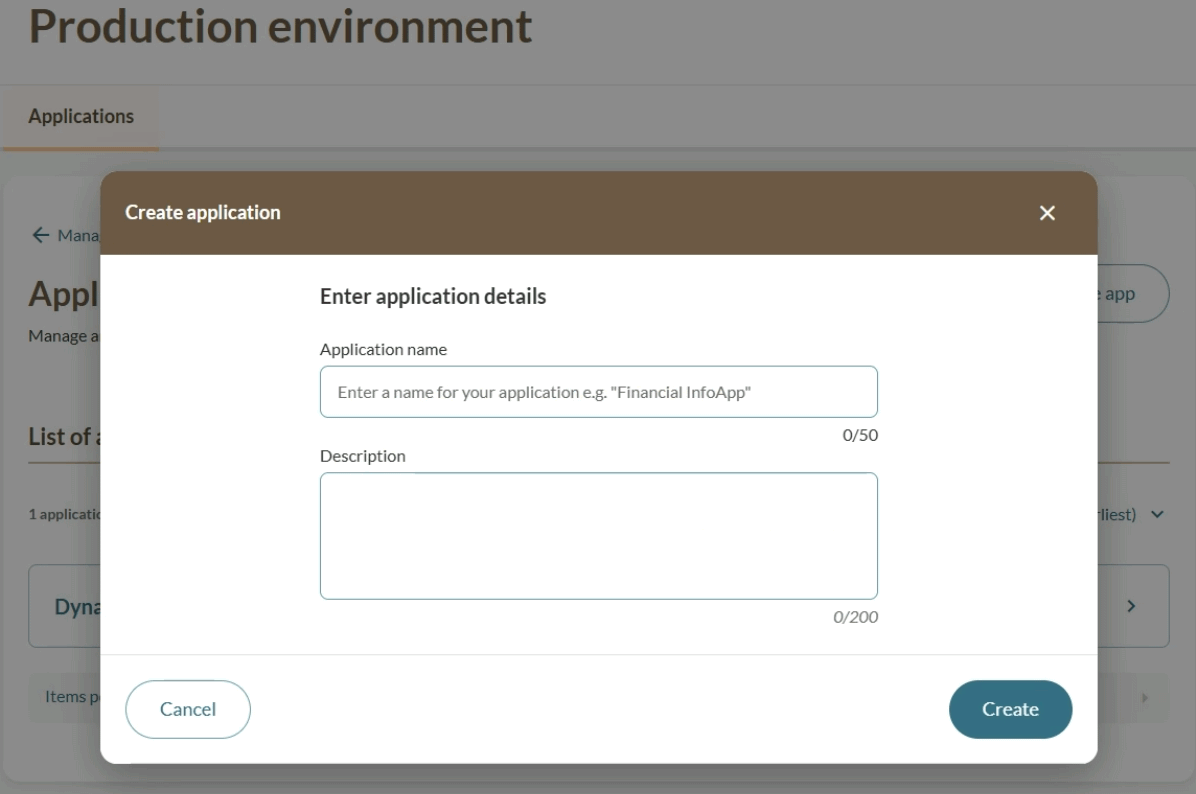
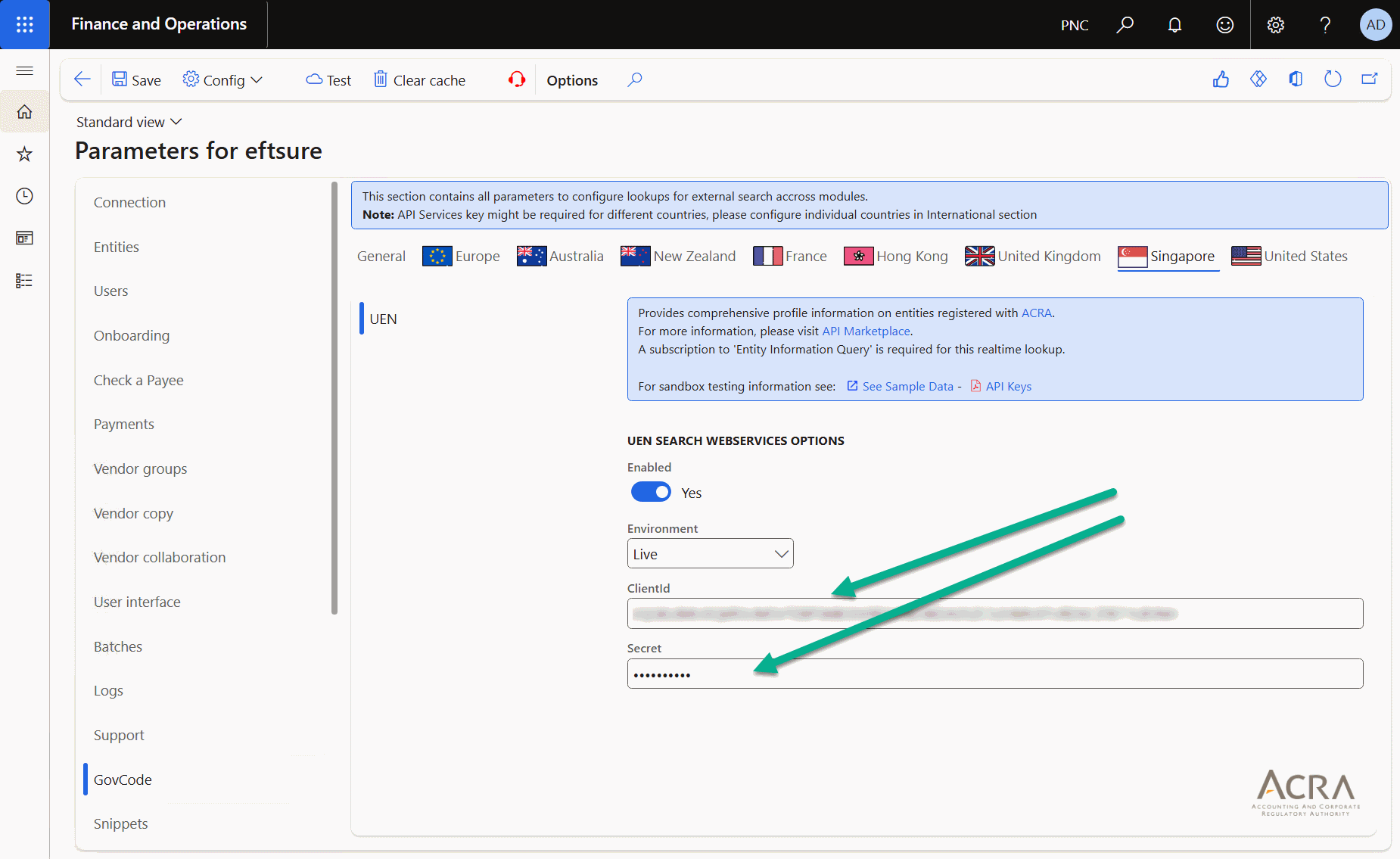
Then generate a new OAuth Client Id and Secret to be used from Eftsure inside D365.
Then enter Client Id and Secret into Eftsure parameters > GovCode > Singapore > UEN
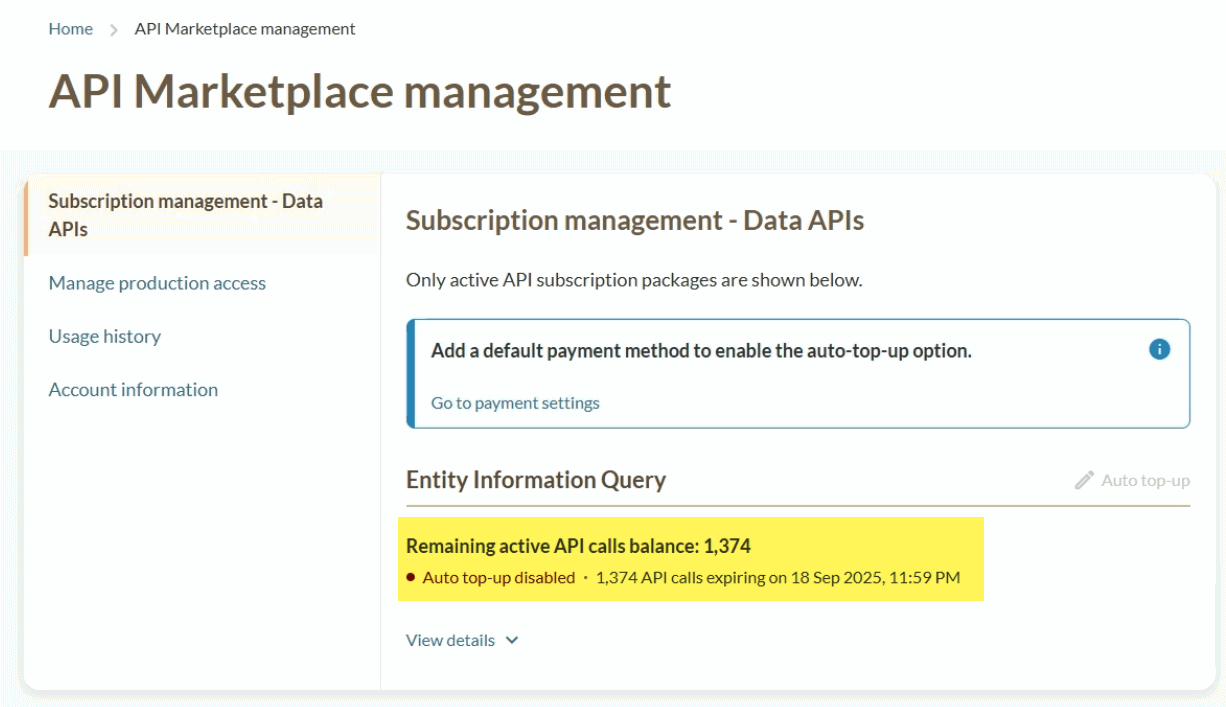
You can also check the balance of your credits:
TIN - United States of America
TIN service is provided by EINSearch - einsearch.com/
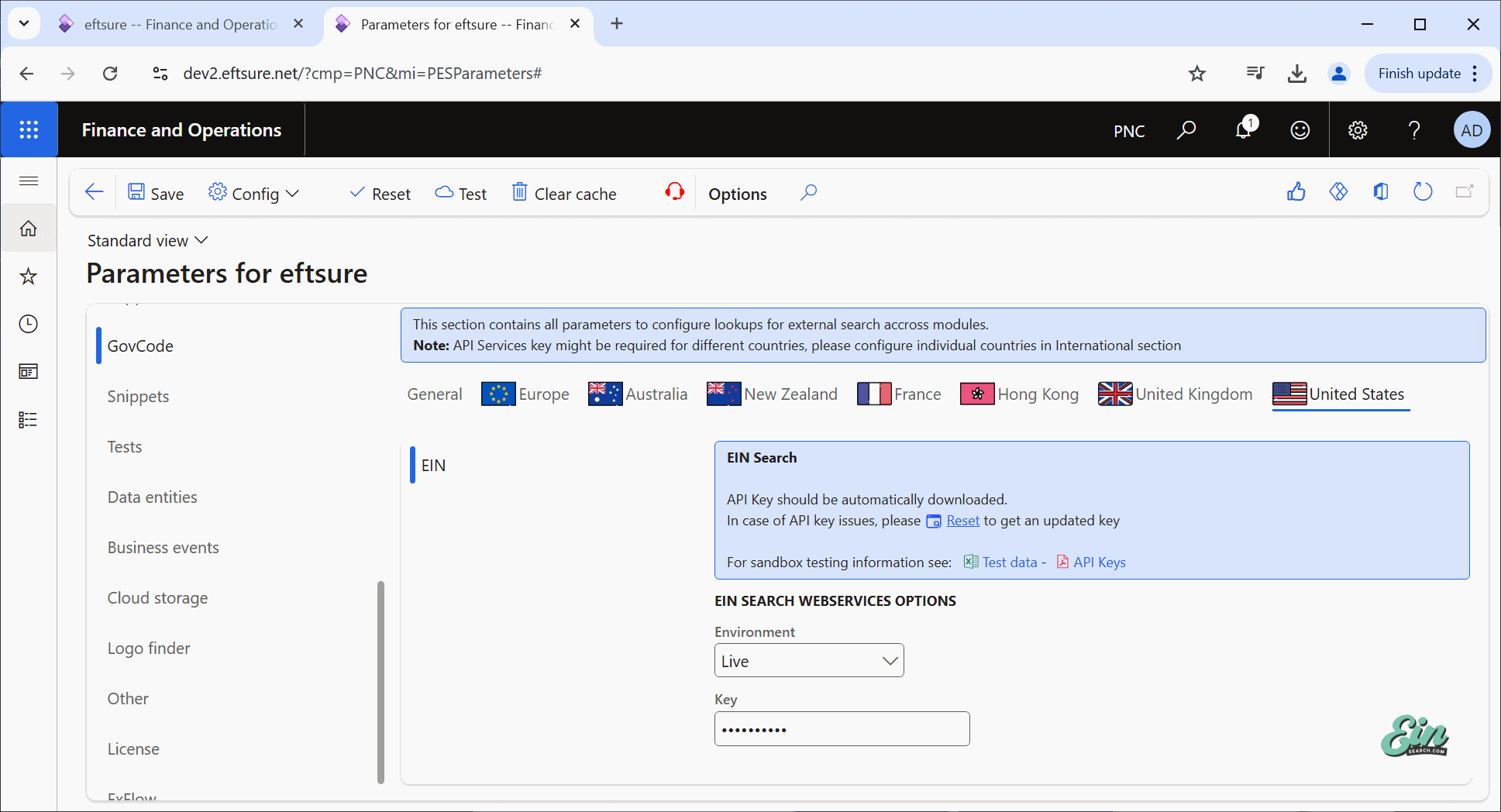
The TIN Token used for Eftsure inside D365 FO can be purchased from einsearch. Then refresh the token by entering your token on the dedicated configuration page:
Maps APIs
Most features are available for Bing Maps, Google Maps and Mapbox. The following documentation describes how to get an API key to use our services.
Bing Maps APIs
Bing Maps is being deprecated on Aug 30th 2028.
Bing Maps integration has been removed in release 5.45.47.1837 and replaced by Azure Maps to achieve the same features.
Google Maps APIs
General
3 different APIs are used from Google Maps APIs and can be activated independently for different options.
For more information, please visit Google site directly:
Simple key creation
Go to Google Cloud console console.cloud.google.com/
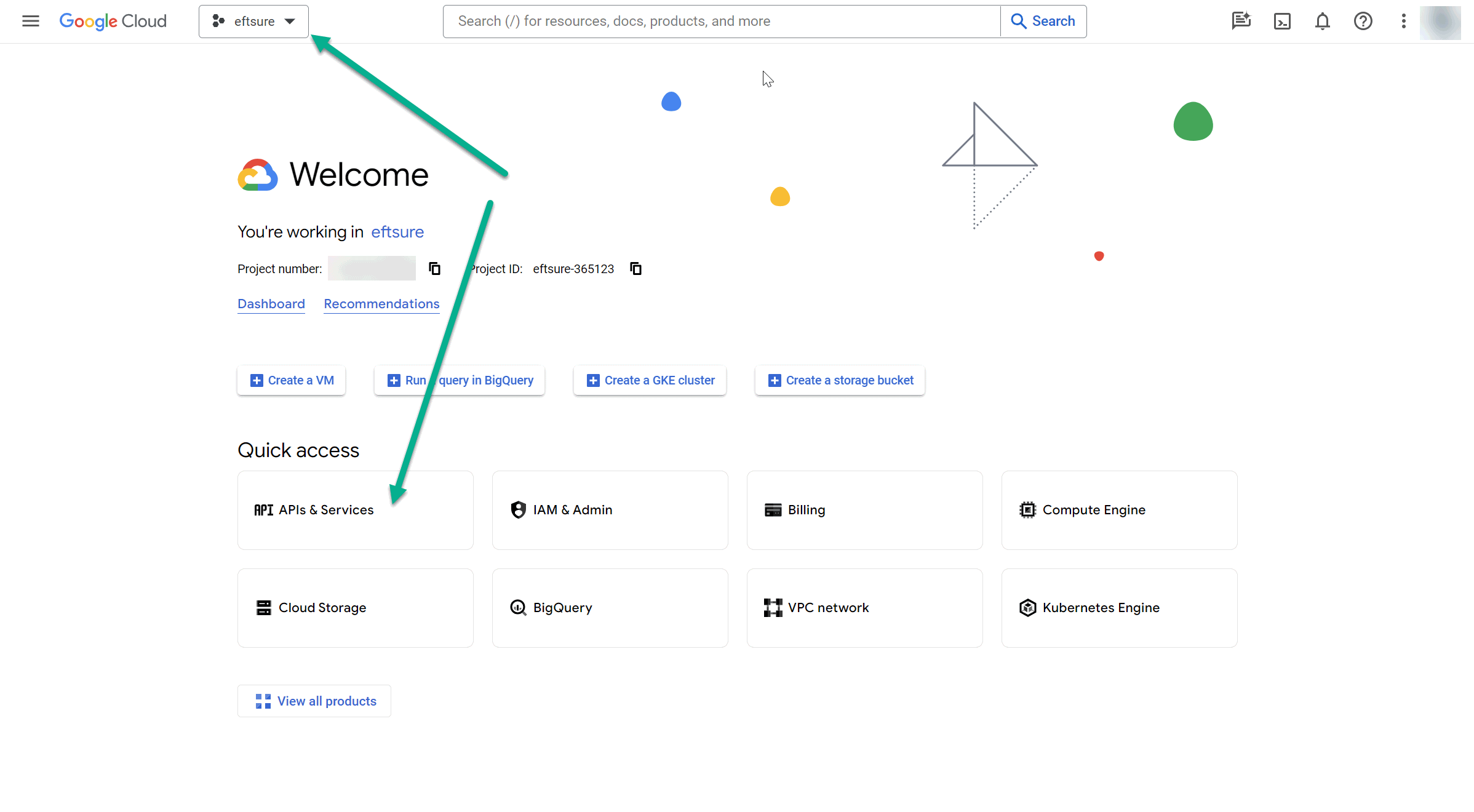
Login with a Google account, create or select an existing project to hold the API Key, and navigate to API & Services:
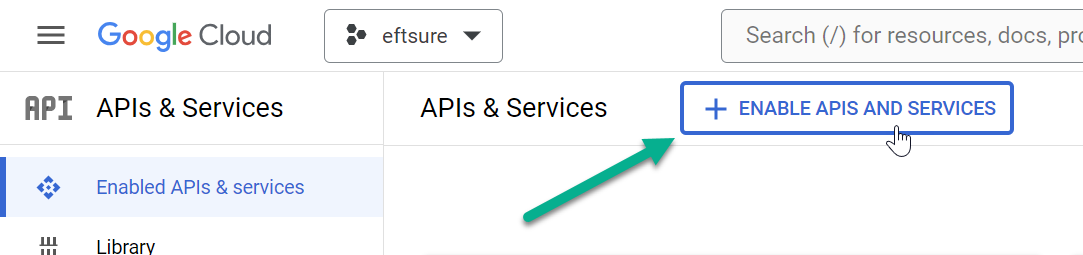
Select Enable APIs and services
Enable Maps Javascript API for Maps to allow displaying maps into the user interface - Optional 
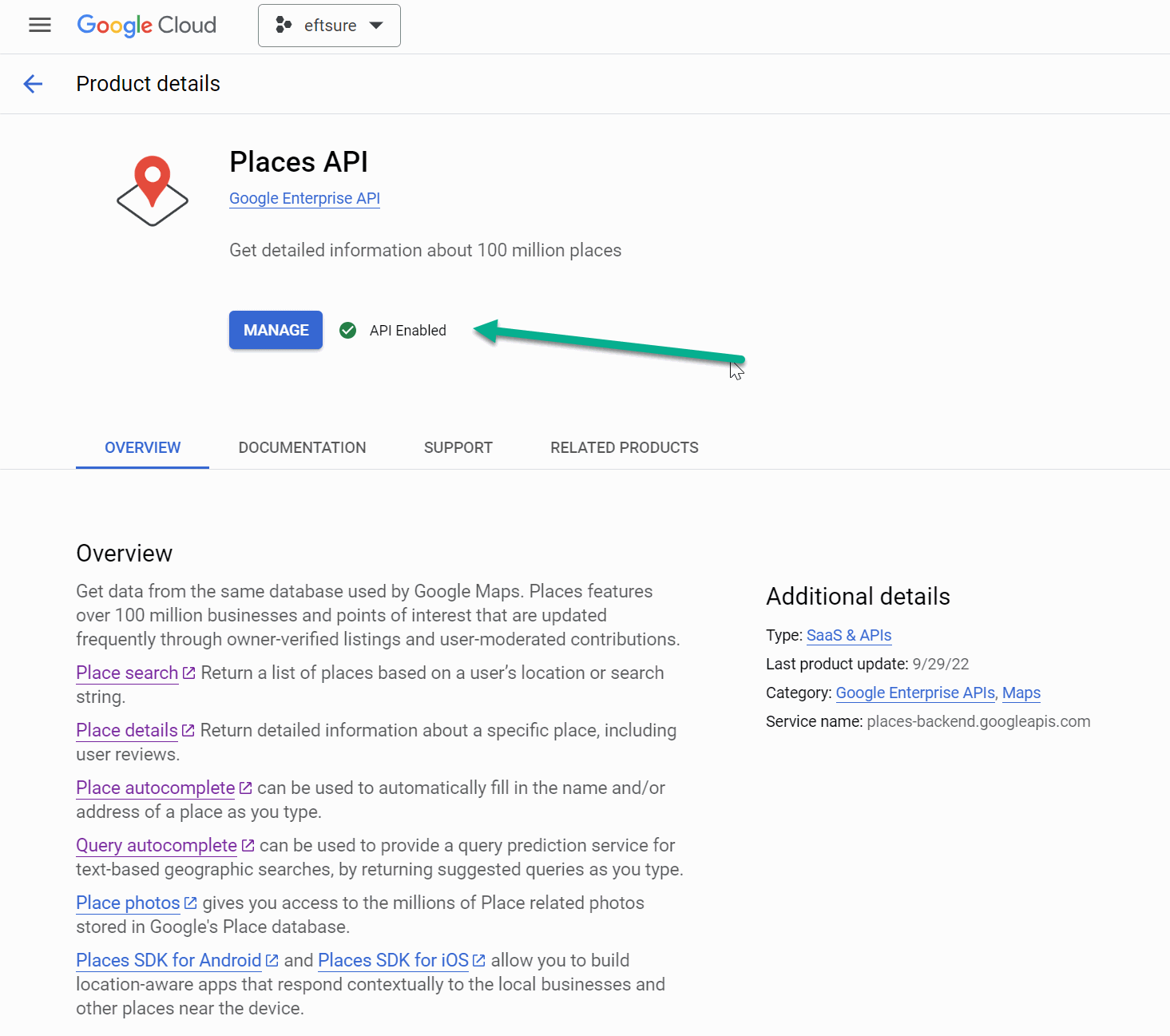
Enable Places API for Places to allow international address autocompletion - Optional

Enable Geocoding API to allow converting addressing into geographic coordinates - Optional

Once enabled, the API will look like the following:
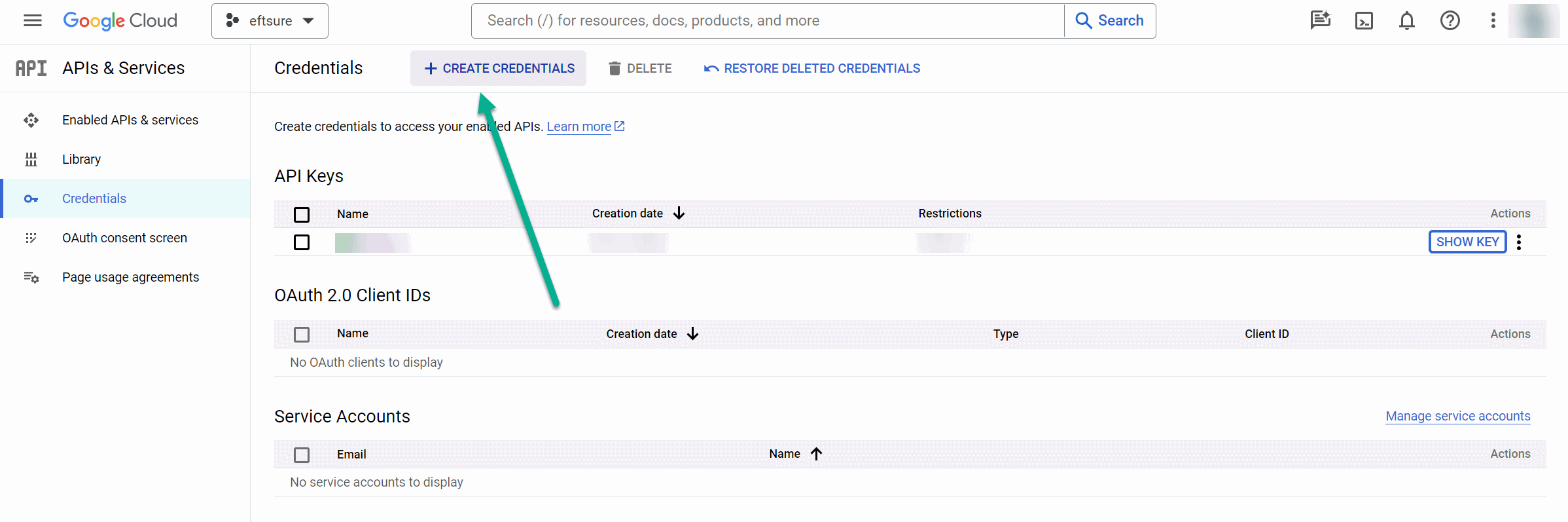
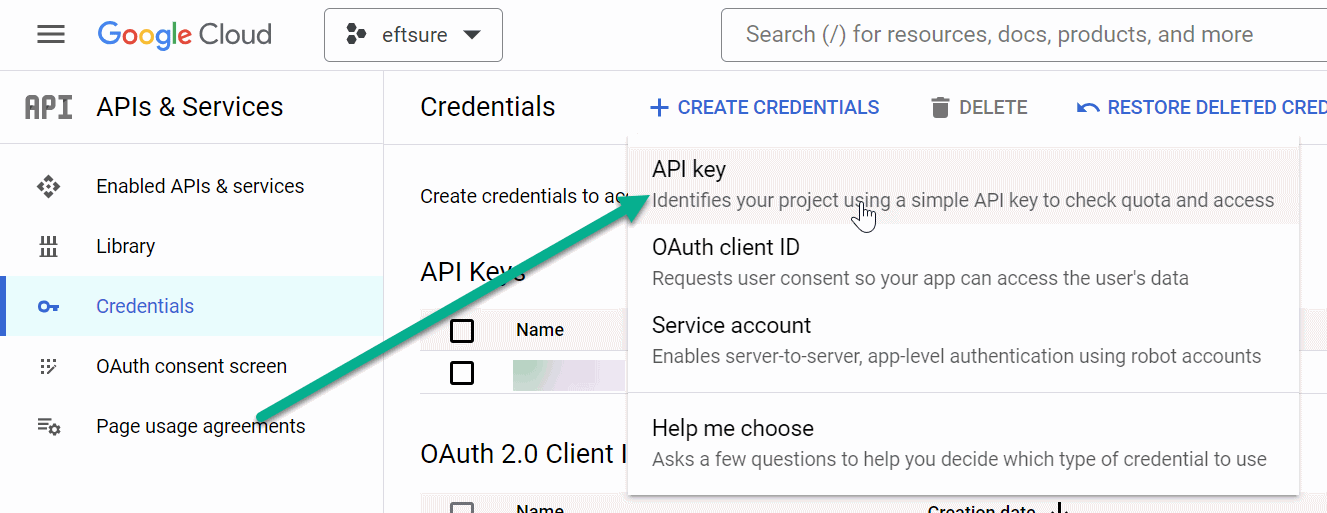
Go to Credentials and select Create Credentials:
Select API Key:
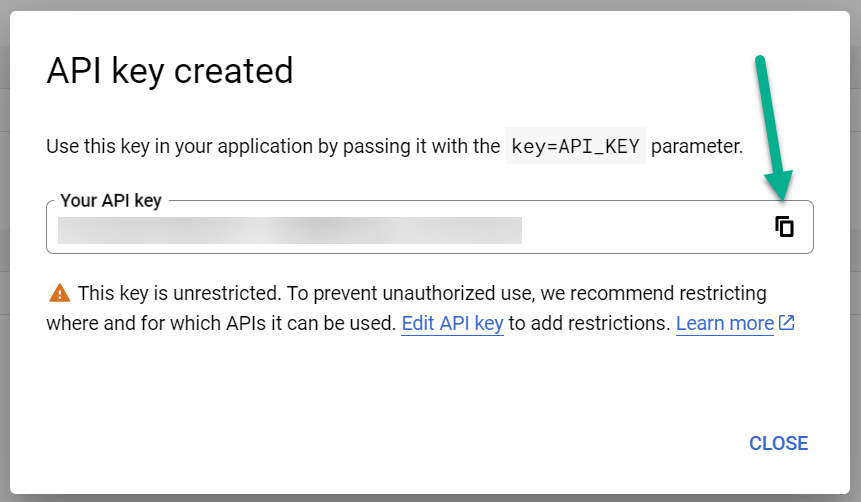
Once completed, the following screen will be displayed, use the copy button and paste it into D365 Eftsure parameters form.
Mapbox API
General
Mapbox is an American provider of custom online maps for websites and applications, currently allowed in China...
A simple API key is required for these options.
Simple key creation
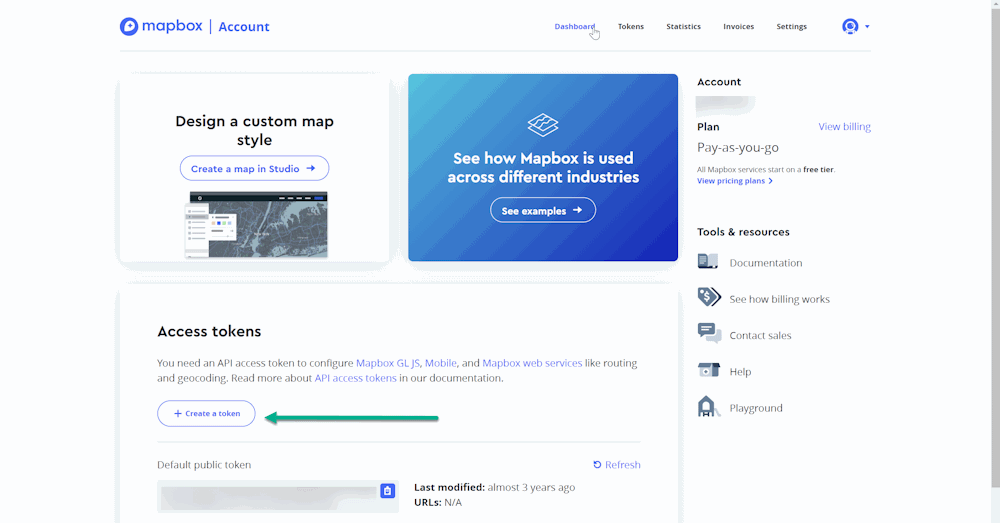
Go to account.mapbox.com/ and login with a mapbox account.
Select Create a token:
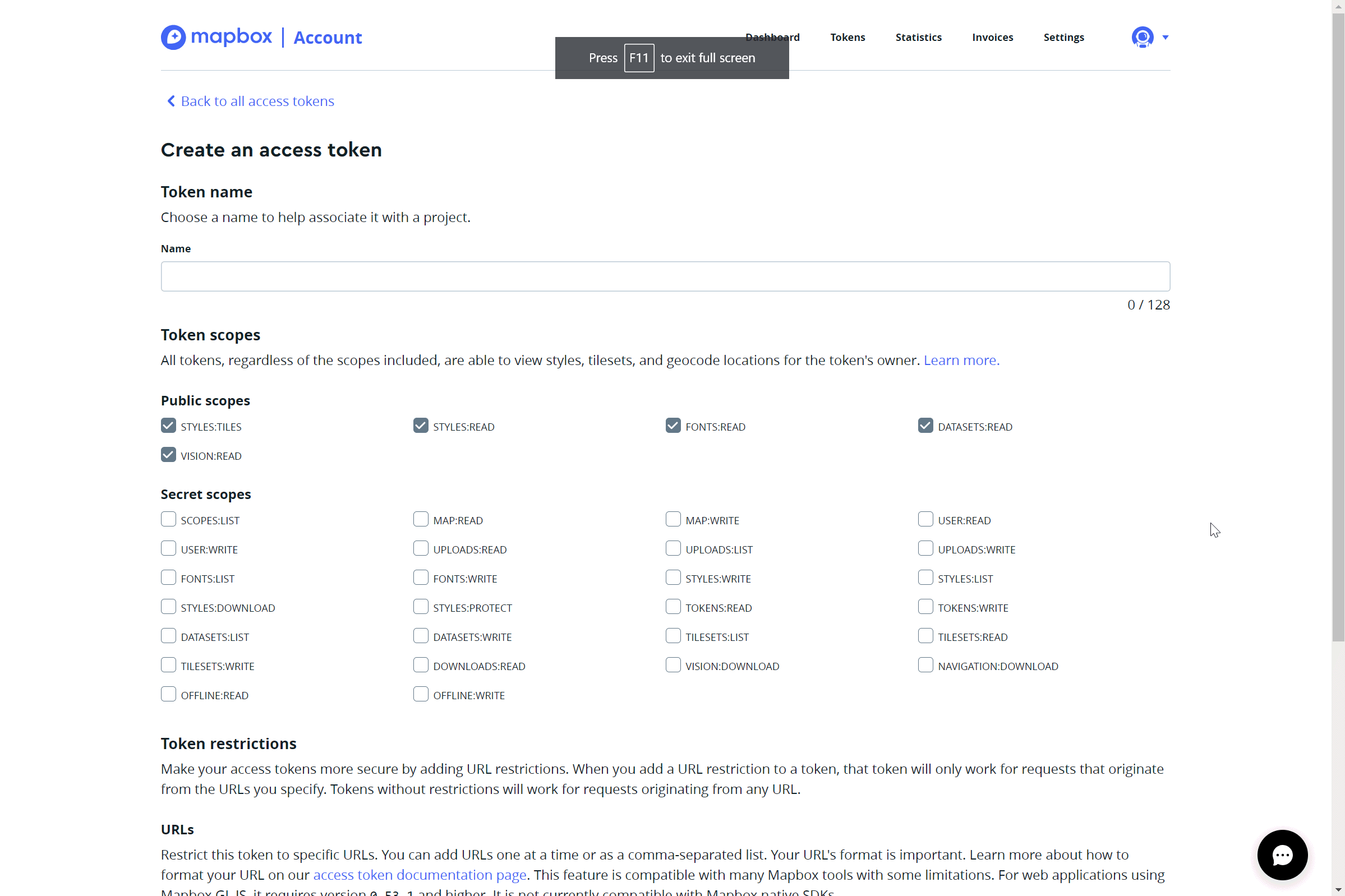
Enter a token name and leave default values and select Create token:
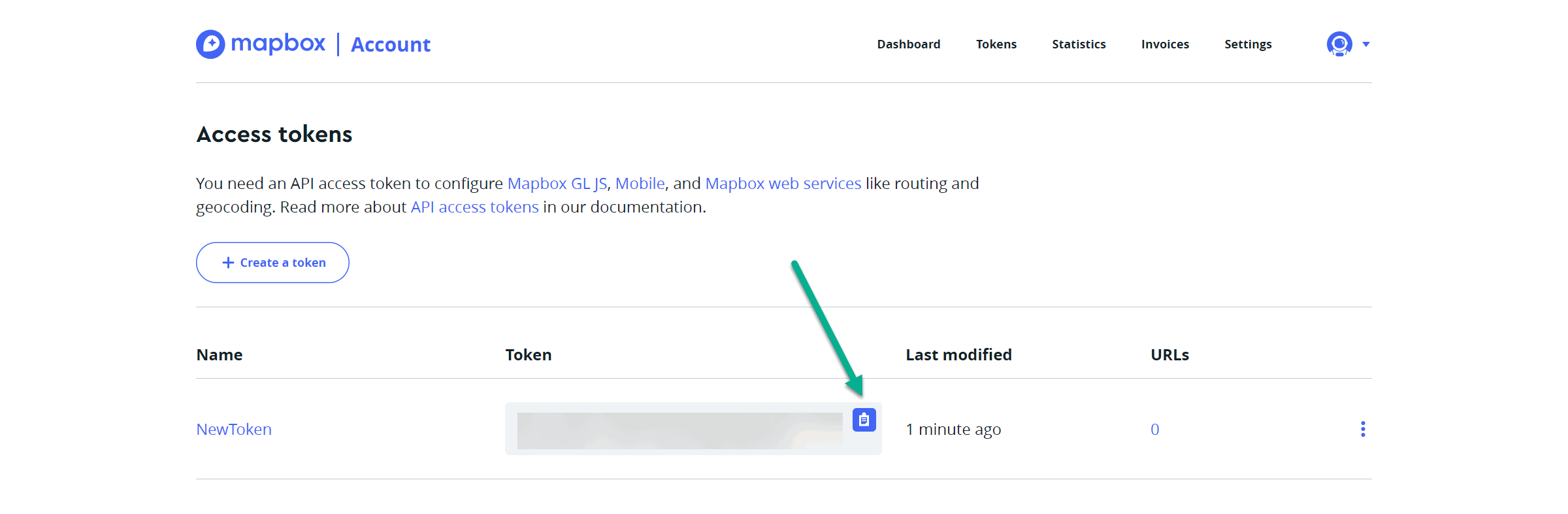
Select the copy button and paste the API key into D365 Eftsure parameters form.
Azure Maps APIs
Azure maps integration uses an Azure Maps Shared Key Authentication
Shared Key authentication, often referred to as subscription key, relies on passing Azure Maps account generated keys with each request to Azure Maps.
Microsoft recommends regenerating your keys regularly. You are provided two keys so that you can maintain connections using one key while regenerating the other. When you regenerate your keys, you must update any applications that access this account to use the new keys.
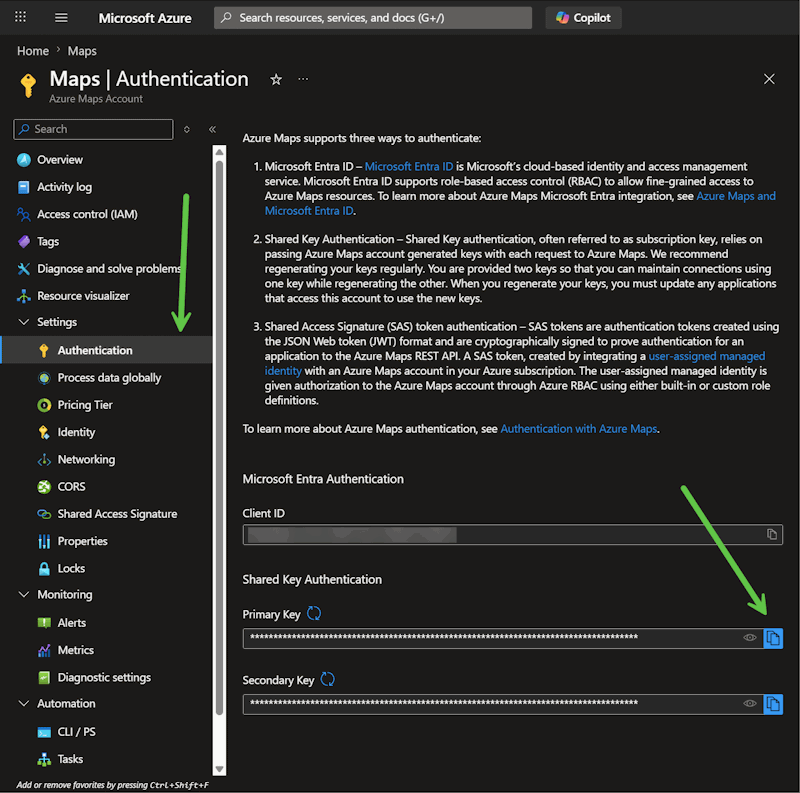
- First create an Azure Maps account in Azure,
- Then navigate to Settings > Authentication,
- Copy the Shared Key Authentication