
Vendor management process
Vendor lookup bank account details (Payee Check)
Using Payee Check to search for vendor Routing number, Bank account in eftsure database before creating a vendor manually or onboarding.


See Payee check.
1. Select vendor country
2. Input Currency
3. Input vendor bank account name
4. Check Account code type (IBAN, SWIFT, US routing etc)
5. Input Routing number/Branch code/SWIFT code
6. Input Bank account from invoice
7. Tab and wait for instant lookup against eftsure database -- we should give bank verification status


8. Click Search > Duplicates
If bank account is Red -- Account name differs
If bank account is Red with Account name is different => changing Bank account name to verified name


If bank account is Red -- Incorrect details
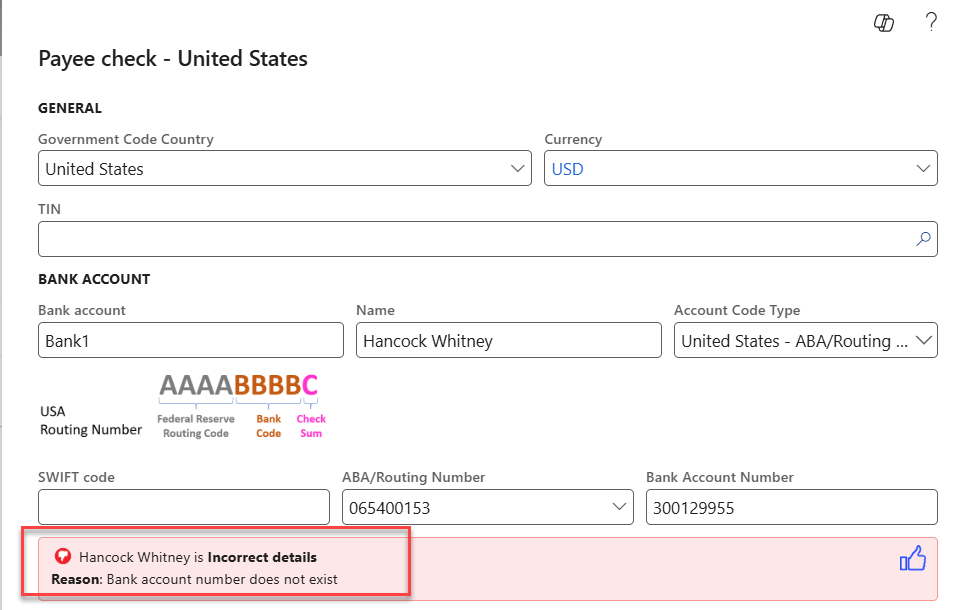
-
If vendor has been created in D365, confirm with vendor for new bank account details and create new bank account accordingly and follow step F for existing vendor.
-
If vendor does not exist in D365, confirm with vendor before onboard and DO NOT create vendor manually in D365.
If vendor is Green and has been created in D365

- Search for duplicate

- Vendor has been created in D365

Please DO NOT create new vendor, confirm with AP team or requester.
If vendor bank account is Green not yet created in D365

- Using Vendor creation option with exist vendor template to create vendor bypassing eftsure onboarding process.

-
Update vendor master with all required information including address, contacts, method of payment etc
-
Or if you want the vendor to input all the details, trigger onboarding process (step E).
If vendor bank account is Orange and no Duplicate

- Using Onboarding by selecting either new onboarding form or default onboarding form from shortcuts by vendor group.

- Follow standard onboarding process

For more information, please refer to Onboarding process.
OR
-
Using Vendor creation option with exist vendor template to create vendor if user does not wish to wait for full onboarding process (Step D)
-
Using Vendor creation option with exist vendor template to create vendor.
-
Update vendor master with all required information including address, contacts, method of payment etc
-
Go to bank account

- Trigger verification process from D365
This is only applicable for US, AU and NZ vendors (basing on either AU or US database)
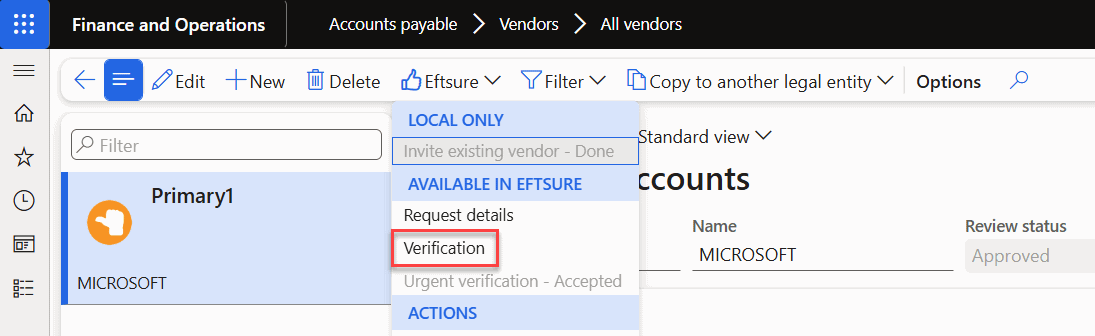
For more details, please refer to Verification process.

- Check sent verification status
If after Sync batch (every 30 minutes), there's still no Onboarding Id, please advise us ASAP.

- Check after 2 days when status change to Accepted, vendor is ready for payment

For international vendor (not US, AU or NZ), please trigger Change request.

If vendor bank account in invoice is different to existing bank account
-
Advise AP team
-
AP team create new bank account and trigger verification process


- Once bank new bank account is verified, expire old bank account
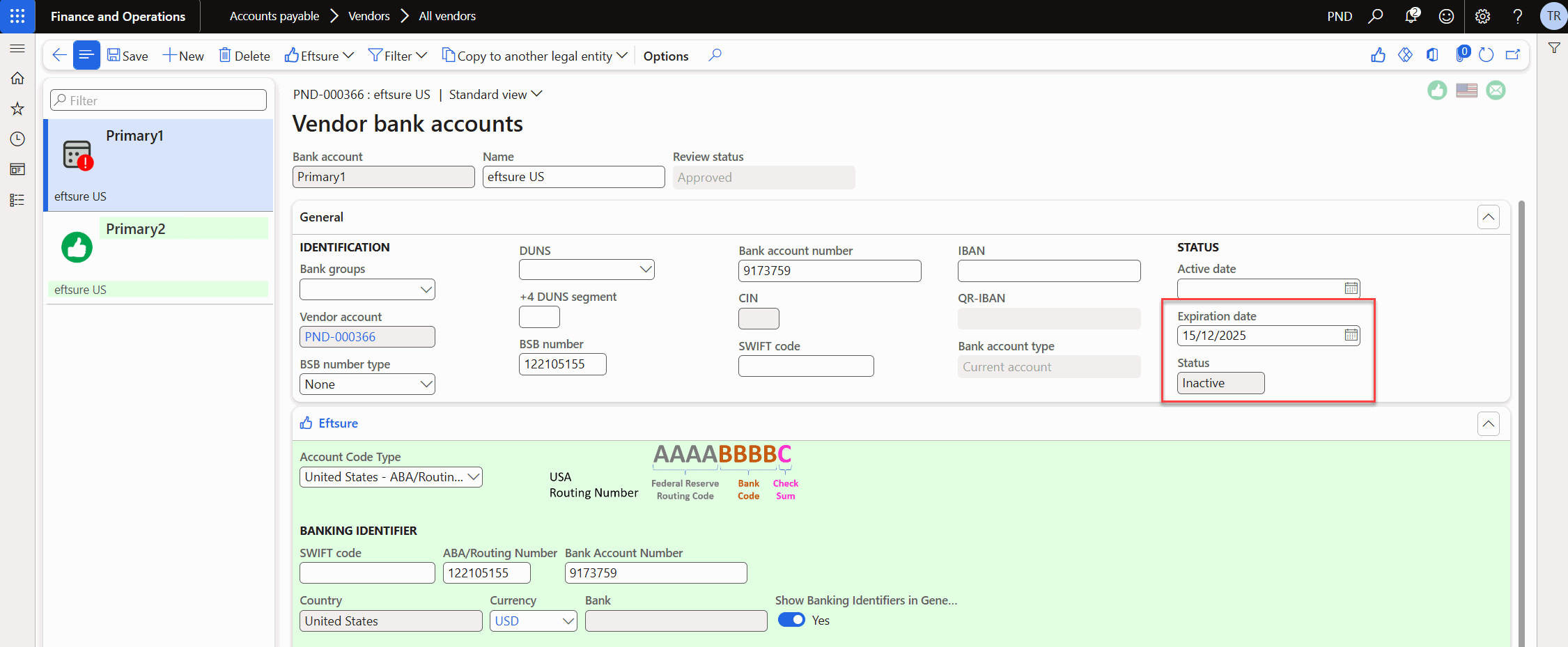
- Assign new bank account to default bank account

- Default bank account status will be updated accordingly

Complete vendor master
US vendor
1. Review Method of Payment
2. Update Payment specifications
3. Review Tax ID type
4. Update 1099 box

International vendor (UK) -- IBAN -- UK entity
1. Review Method of Payment
2. Update Payment specification
3. Review Foreign entity indicator

4. Update bank account number, routing number for domestic payment

International vendor -- SWIFT
1. Review bank account details -- branch code
Since branch code/routing number is mandatory if Account Code Type is SWIFT, if branch code is blank, end user will need to update manually either with valid branch code or same with SWIFT code.
Check vendor (onboarded via eftsure)
Vendor with Check as Method of Payment and requires address description as vendor name.
Configuration Parameters > Onboarding > Addresses > Physical > Vendor name

1. Updated address name/description as per requirements
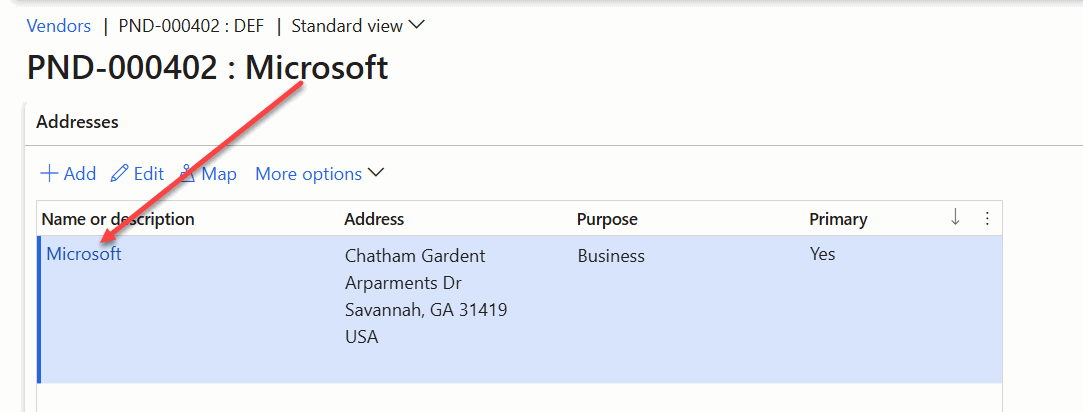
2. Create bank account with 00000 as BSB and bank account number (if business requires bank account for reporting or payment customisation)
