
Support
This section describes how end-users can reach key users for assistance.
Our support tool works in 2 different modes:
- End users can send requests to their key users,
- Key users can escalate issues to Support if/when applicable.
For urgent verifications, please use our Urgent Verification tool instead.
Most common errors are listed in our FAQ.
Accessibility
Our support feature can easily be accessed from Eftsure workspace using the red headset icon.
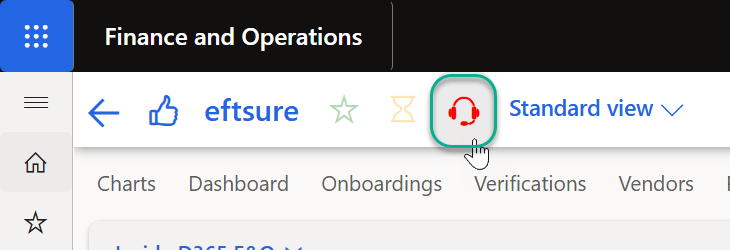
The feature is also available in any D365 form (Eftsure enabled) where the Eftsure ribbon icon  is available.
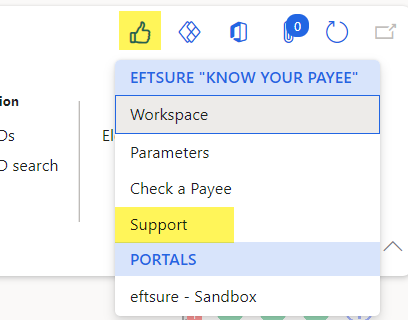
This feature is also available in many other forms where the Eftsure ribbon icon is not available (Wizards, Dialogs, etc.)
Context
This feature is context aware and will attempt to provide the context alongside the support request.
If a vendor, bank account, onboarding is currently selected, it's details will be passed along.
Similarly, if the selected record is a webservice log or trace, it will be automatically added as attachment. This is especially useful to provide additional information to facilitate troubleshooting.
Screenshot
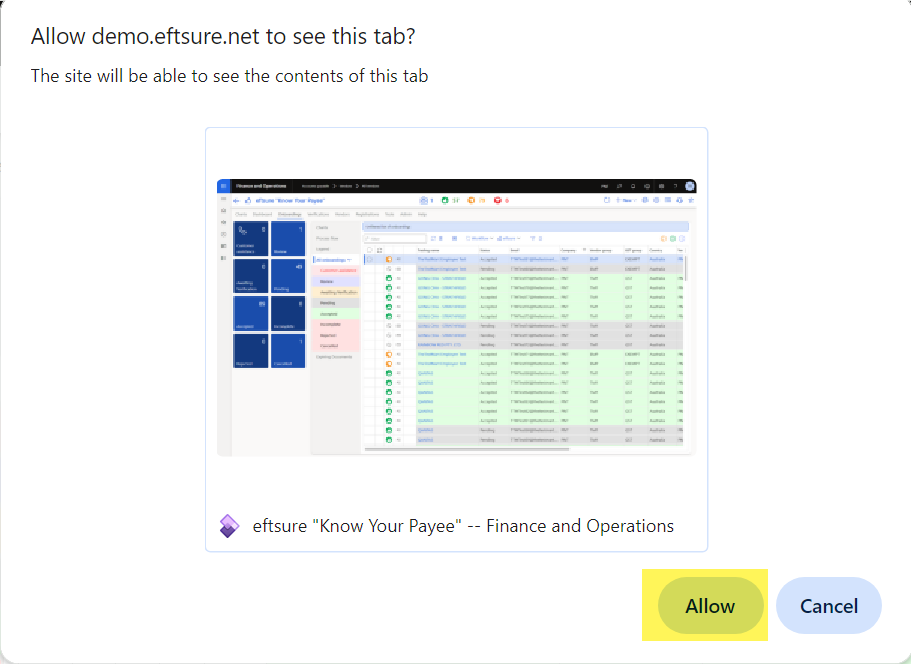
Upon clicking on the Support button, an attempt to take a screenshot of the current screen will be performed, resulting in a user prompt to approve the capture. The user can cancel the request for business/confidentiality reasons, however screenshots help the receiver to troubleshoot your issues.
If the screenshot permission is allowed, a screenshot image will appear in the attachment list.
If the screenshot is cancelled, no screenshot will be attached to the support request.
End user support
End users can submit issues any number of issues which will be triaged/reviewed/investigated by the key user. The support form will appear in simplified mode where the end user can enter a subject and a description for the issue.
Upon sending the issue, a new email will be added to the D365 outgoing email queue, sent from the current user to the internal key user (as configured in Eftsure workspace > Parameters > Support).
Key user support
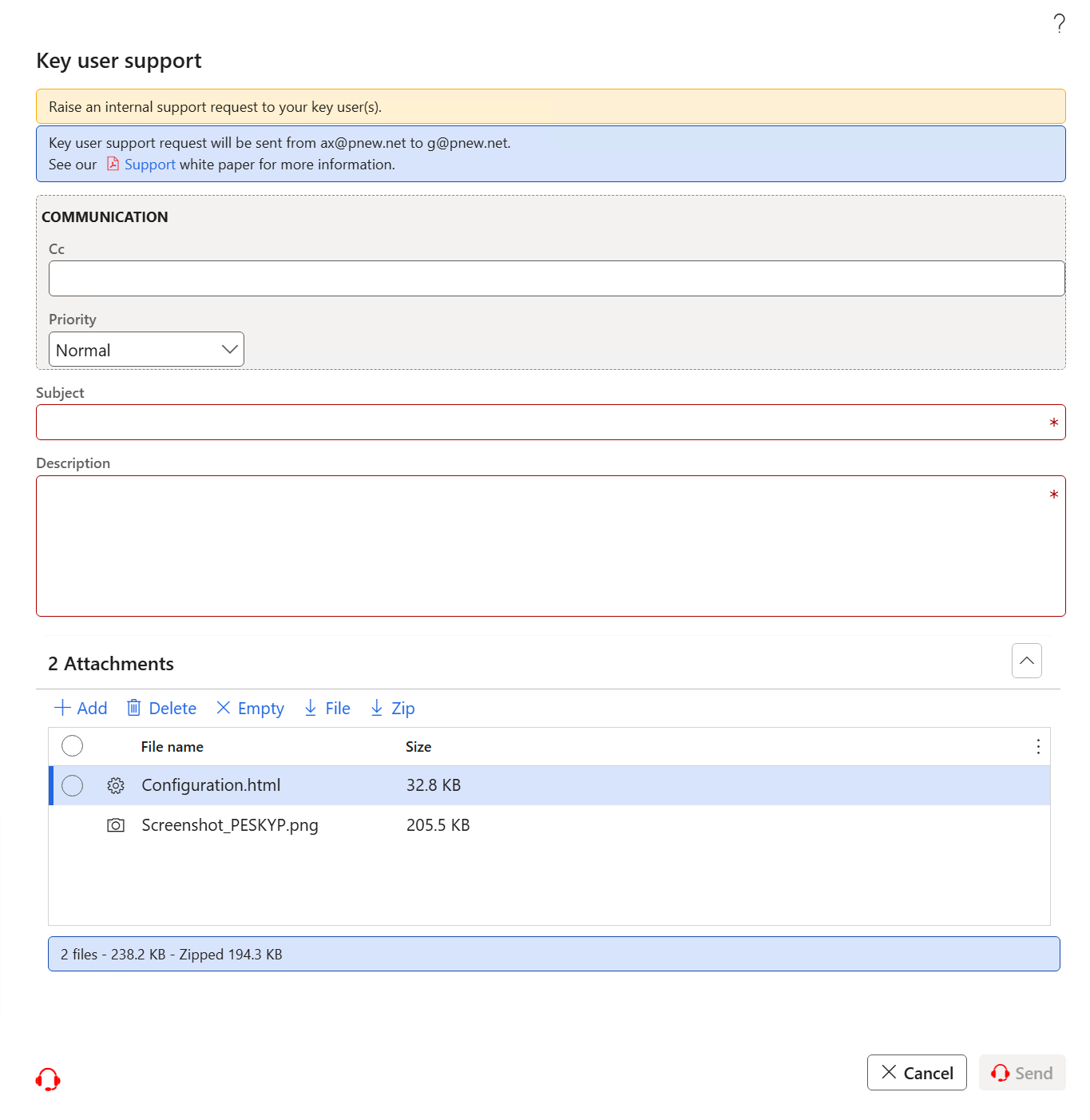
Once a key user receives a support request from an end user, they should first investigate and attempt to reproduce the issue (ideally outside live), confirm whether it is a valid system problem rather than a knowledge gap or configuration issue.
If the issue is identified as a genuine Eftsure-related system problem, the key user should then raise a support ticket, including all relevant supporting documentation.
When key user(s) create support requests, an new ticket is created in Eftsure Zendesk support platform, and a Zendesk ticket Id is returned to allow further communication.
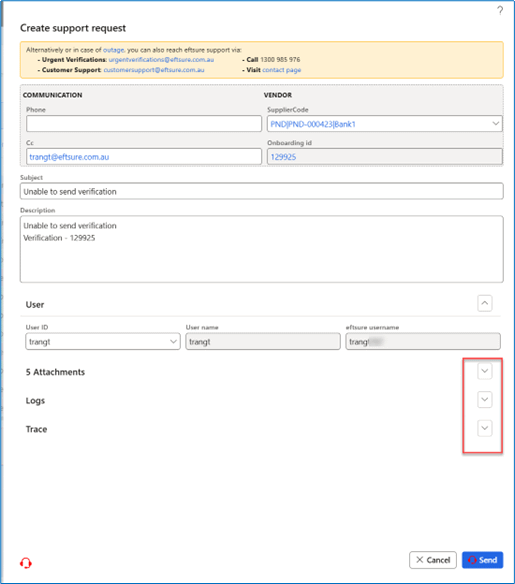
Only Eftsure Administrators can view web service logs in Workspace > Admin > Logs. Key users cannot view these logs, However, while creating an issue, logs are available in the Logs tab. Users can filter them by end user, creation date, or method name and attach to the ticket. If you are unsure which web service log is relevant, select a limited number of adjacent logs and attach them to the ticket.
To help the support team with more detailed information and enable easier investigation, please also include any logs relevant to the issue. See Support logs or consult your Eftsure administrator.
Please see Support Scope and Out of scope for further details on support coverage.
Eftsure reserves the right to charge for any work outside the scope of the Support Centre. Wherever practical, Eftsure will advise in advance when a support incident is chargeable.
In general, support incidents outside the scope of the Support Centre and deemed chargeable will be escalated to the Professional Services team to resolve.
Alternate Support
The D365 Support tool is the recommended approach to engage with Eftsure support as it provides a lot of information to help troubleshoot our customers issues.
In case of outage, you can also reach Eftsure support via:
- Australia
- Canada
- New Zealand
- United Kingdom
- United States of America
- Urgent Verifications: [email protected]
- Customer Support: [email protected]
- Call 1300 985 976
- Visit contact page
- Customer Support: [email protected]
- Call +1 778 312 2900
- Visit contact page
- Urgent Verifications: [email protected]
- Customer Support: [email protected]
- Call +64 9-801 8276
- Visit contact page
- Customer Support: [email protected]
- Call +44 20 8054 7400
- Visit contact page
- Urgent Verifications: [email protected]
- Customer Support: [email protected]
- Call +1 833 903 2230
- Visit contact page
- Australia 09:00 AM to 06:00 PM EAST
- United States 9:00 AM to 5:30 PM PST