
Application lifecyle management
Source control
After successful deployment, you can now check-in our new release into your source control for further references.
Go to Visual Studio and open the Source Control Explorer window,
For initial deployments, add the contents of the Eftsure folder into your source control, please make sure no files are excluded while adding our release folder to source control!
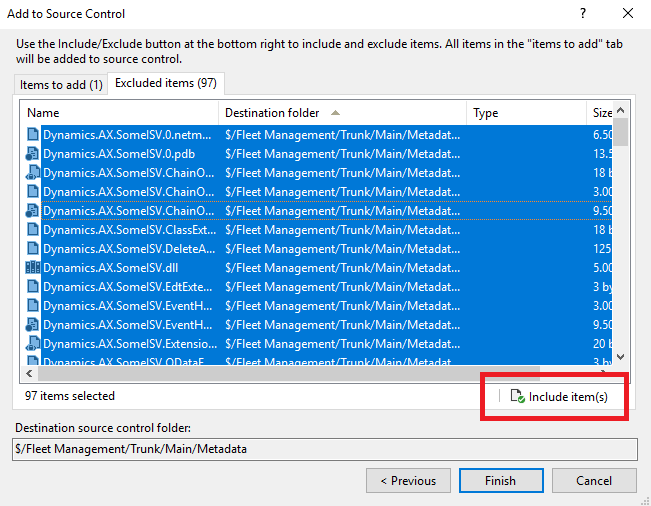
Include all items in source control, until there are no more excluded items:
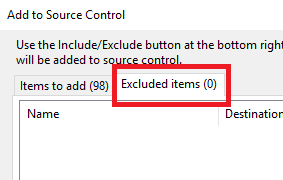
When you check-in the upgraded version to DevOps, there should be exactly the same files in repository as if you would install and check-in the new version on a clean environment. DevOps may not automatically detect and include all upgrade changes for check-in, especially if file(s) have been deleted in the new release. Please check that the contents of your deployments and all-in-one packages match the contents of our published packages. If not, see troubleshooting.
Go to Team Explorer - Pending changes and check-in your code, following your Team rules, making sure to only check-in code from this release.
The files resulting from compilation might appear in your Pending Changes, and are not required to be version control, just make sure all files from the original zip file are checked-in.
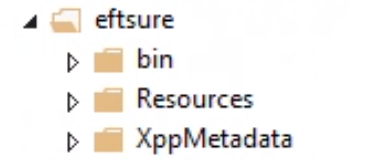
Your source control folder should look like:
All in one package
Your package can be created using DevOps pipelines or Visual Studio.
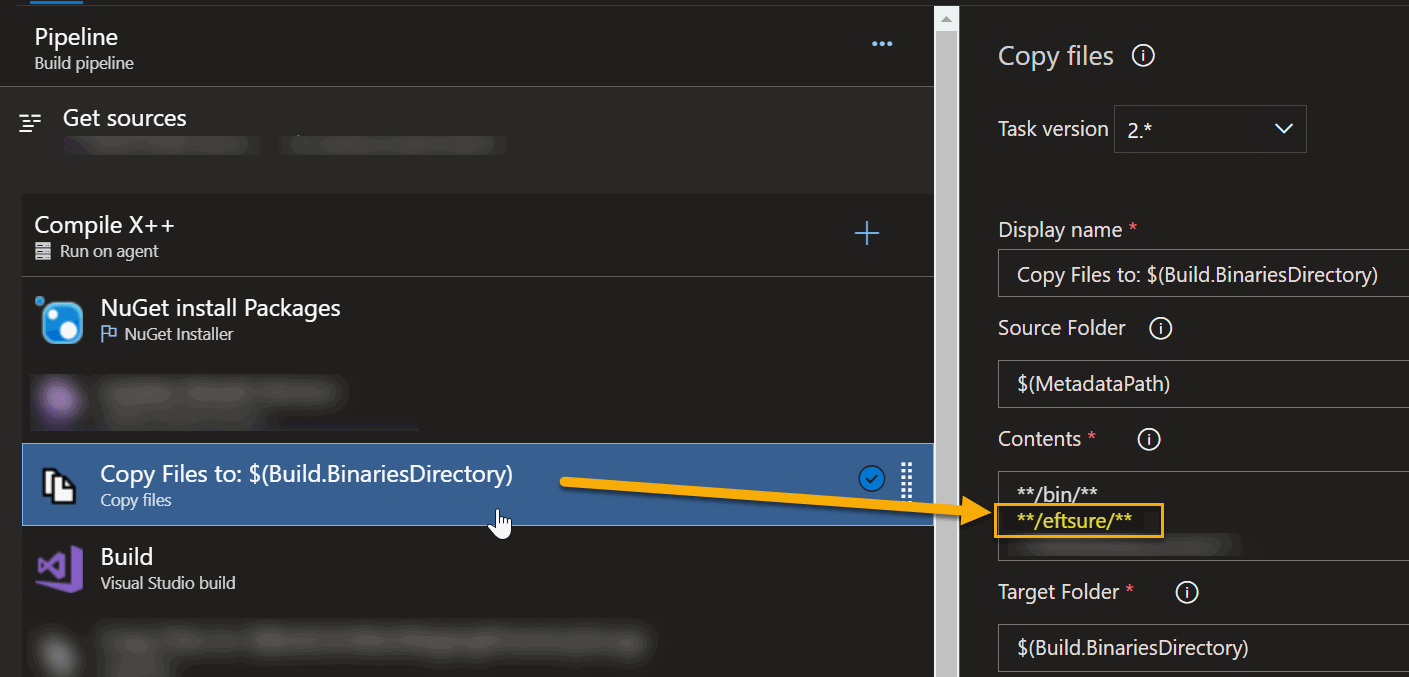
For Cloud hosted build pipelines, we recommend the following step to be added into the pipeline:
Upload package to LCS
This deployable package should now be uploaded to LCS for testing in non-developer environments.
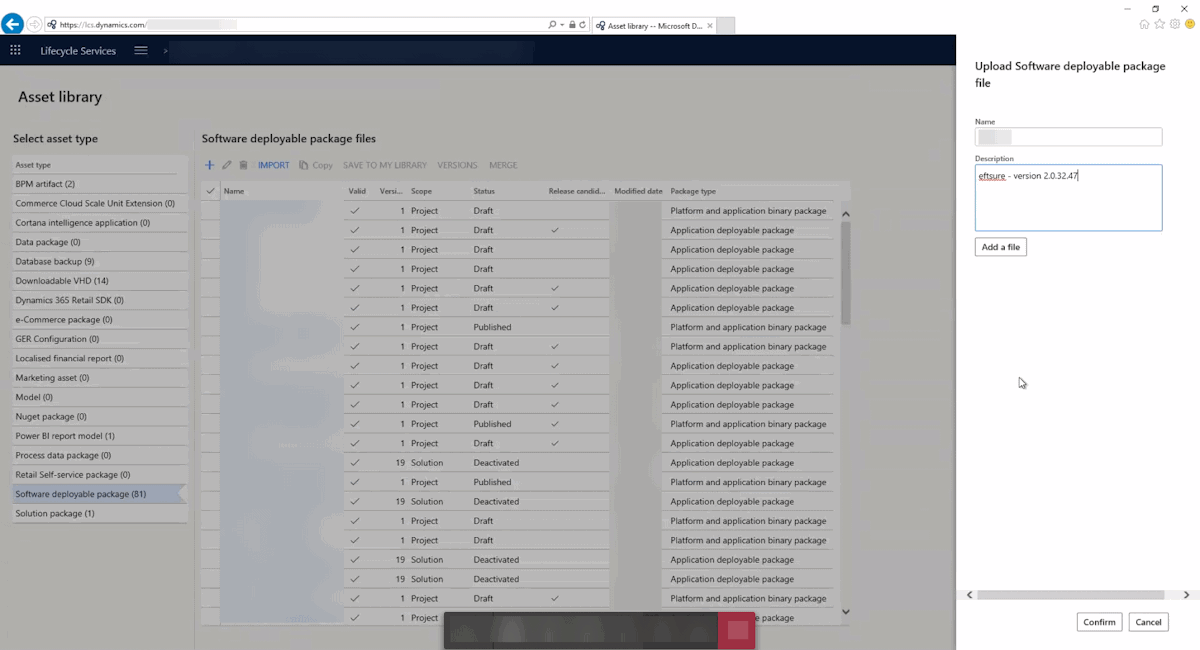
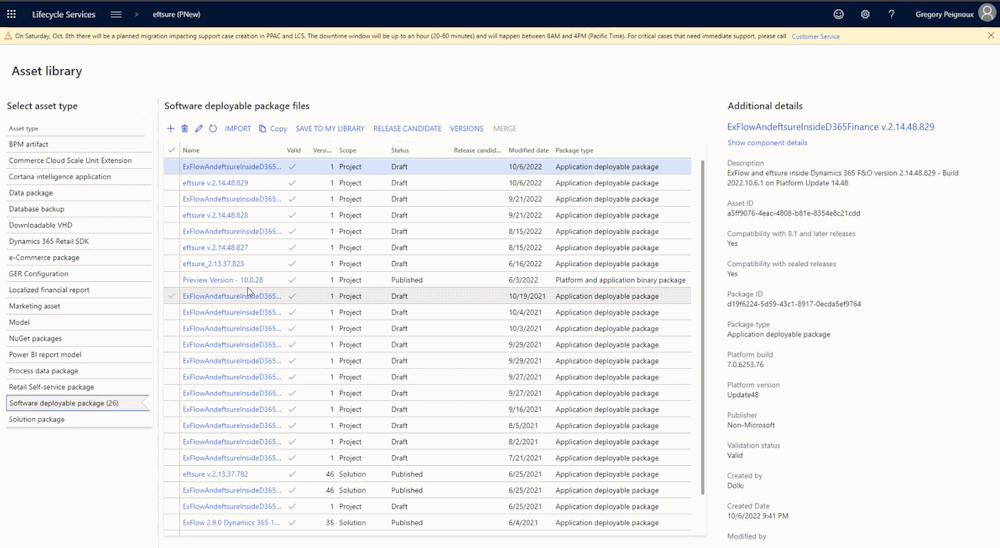
Head to lcs.dynamics.com/, select your project(s), go to the Asset library, Click the Add button, enter a Deployable Package name and description, upload your newly created Deployable Package, and Confirm.
Your new deployable package is now ready to be deployed into your sandbox environments.
Deployments to cloud hosted environments (DEV,Test, Live)
Before you begin, verify that the deployable package has been uploaded to the Asset library in LCS.
Open the Environment details view for the environment where you want to apply the update.
Click Maintain > Apply updates to apply an update.
Select the package to apply. Use the filter at the top to find your package.
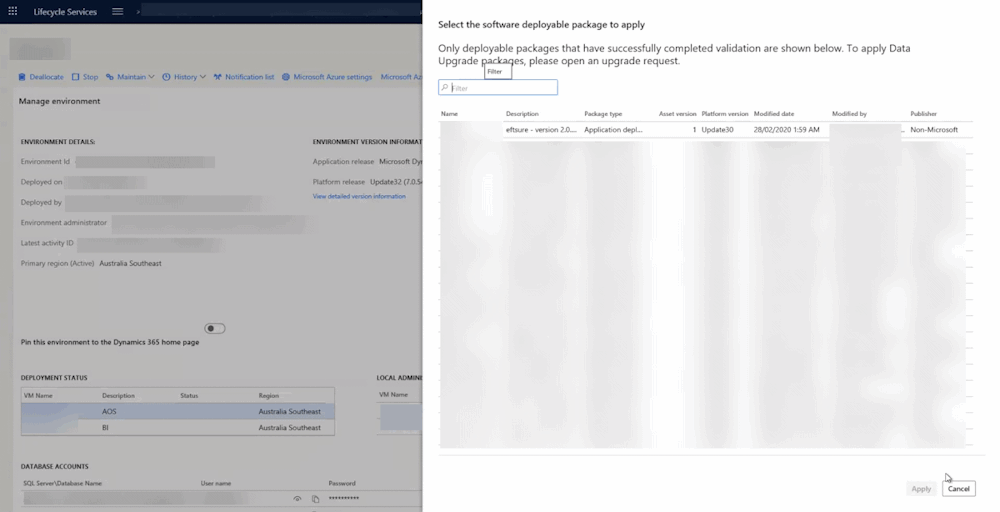
Click Apply. Notice that the status in the upper-right corner of the Environment details view changes from Queued to In Progress, and an Environment updates section now shows the progress of the package. You can refresh the page to check the status.
Continue to refresh the page to see the status updates for the package application request. When the package has been applied, the environment status changes to Deployed, and the servicing status changes to Completed).
Apply a package to a production environment by using LCS
In a production environment, customers can schedule a downtime for when they want the update to be applied.
Important: A prerequisite for applying a package to a production environment is that the package must be successfully applied to at least one sandbox environment in the same project.
After the update is successfully applied in a sandbox environment, go to the project's asset library. On the Asset library page, select the Software deployable package tab, select the package that you want to move to production, and click Release candidate. This indicates that this package is ready for production deployment.
Open the Environment details view for the production environment where you want to apply the package.
Select Maintain > Apply updates to apply the package.
Select the package to apply in your production environment, and then click Schedule to submit a request to apply it.
The list of packages includes only the packages that have been successfully signed off in the sandbox environment, and that have been marked as release candidates.
Specify the date and time to schedule the package application. Click Submit, and then click OK to confirm.
Your environments will be unavailable to perform business while the package is being applied.
At the scheduled downtime, package deployment will start.
After the environment is serviced, you can monitor the status. The Servicing status field indicates the status of package application. Additionally, a progress indicator shows the number of steps that have been run, out of the total number of steps that are available.
After the deployment is successfully completed, the Servicing status field is set to Completed.
If package application isn't successfully completed, Microsoft will investigate the issue. The Servicing status field will indicate that package application has failed. The environment will be rolled back to a good state.