
Logs
Since D365 and the Eftsure are connected via APIs, any communication issue will likely require webservice logs for investigation/troubleshooting.
Since your Eftsure support team does not have access to your D365 environment, we may request our key-users to include such logs in their support tickets.
This article explains how to add webservice logs to support tickets using our Support tool.
Payload
The webservice payload, which represents communication with Eftsure, can be recorded for troubleshooting. This payload includes the request and response data as exchanged between D365 and the Eftsure portal. This typically contains all details such as endpoint URLs, headers, request body, response body, status codes, and timestamps.
After enabling webservice logs, Eftsure Administrator users can view these logs directly in Eftsure workspace > Admin > All logs
Logs selection
The key user is responsible for sending the appropriate data in the support ticket, and may decide to include one or more logs for troubleshooting.
Use the descriptions below to identify which webservice logs need to be sent to Eftsure via support:
| Log Method name | Related Feature | Related process |
|---|---|---|
| Invite | New onboarding/Request details | Onboarding/Change request |
| UpdateOnboardingStatus | Workflow > Accept | Onboarding/Change request |
| GetOnboardedInfo | Onboarding sync (Batch/Manual) | Onboarding/Change request |
| GetSupplierInfo | Sync from Eftsure | Verification/Vendor update |
| Update | Sync to Eftsure | New vendor/bank/update/verification |
| RetryVerification | Verification - retry | Retry verification |
| Verify | Validate > Validate | Vendor payment validation |
For more detailed information on all Eftsure API calls, please refer to the Eftsure API documentation.
Review payload
Navigate to Eftsure workspace > Admin > All logs > Eftsure.
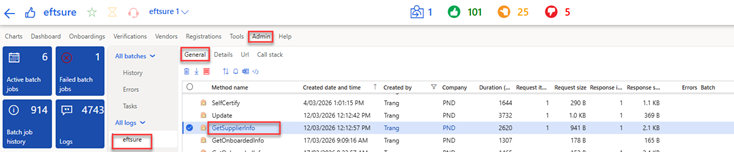
Locate the relevant transaction using criteria such as method name, errors, date/time, created by, etc.
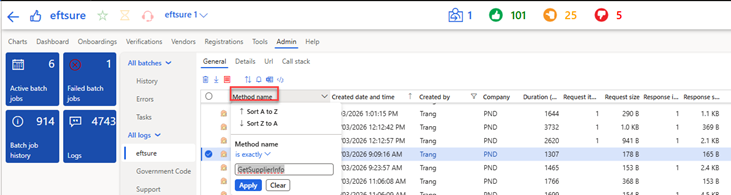
In the most obvious scenarios, these logs may be highlighted as errors with a red background color.
Alternatively, use the standard filter to filter any records with column Errors having a value greater than zero to see all errors.
If relevant, review payload should show & match your supplier code having an issue.
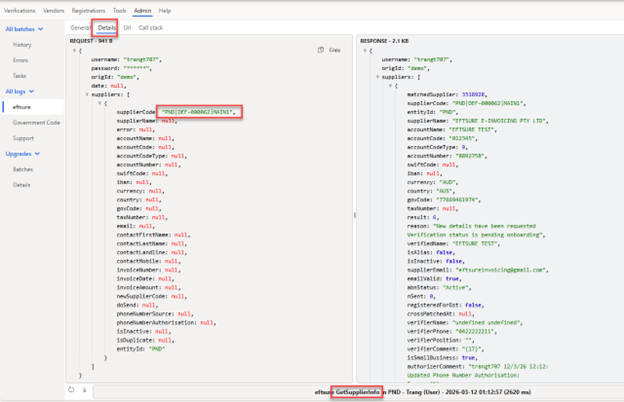
If the key user does not know the exact time or method name (API payload name), they can filter by date and user, then include a reasonable amount of logs for our team to troubleshoot, however we do not expect to receive a month worth of logs for each ticket.
Local export
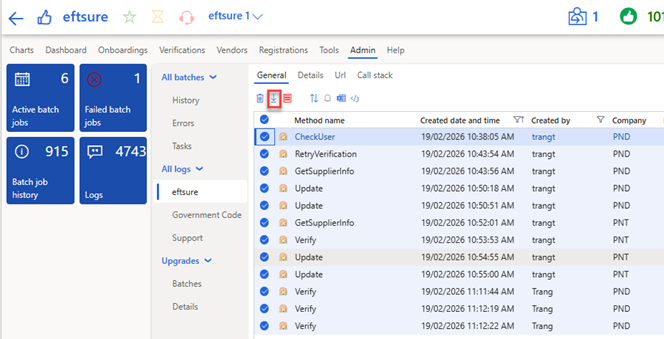
Logs can be eported to files for manual review, hit the Export button to save the file locally:
Request support with payload
To request support with attached payload, either:
- Select multiple records in Eftsure workspace > Admin > All logs and click the Support button. All selected logs will be included as attachments.
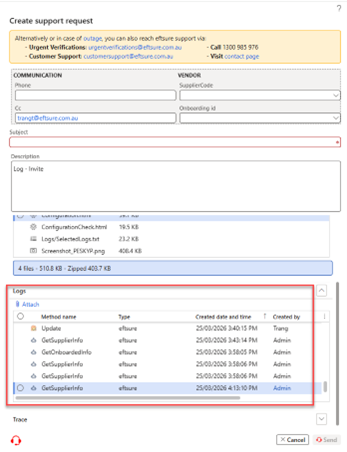
- Hit the Support button and add logs manually in the Logs section.
- Hit the Support button and add logs exported locally manually in the Attachments section.
For more information, please refer to Support tool.