
Documents
Our Documents feature leverages AI models to scan business documents and retrieve vendor information for data entry/integrity.
At this stage, this feature is considered Experimental, please validate the data generated by AI.
See the following quick demo for an overview:
The uploaded file is not saved during transport.
Usage
Once fully configured, the Documents feature will be available in:
- Payee check
- Onboarding wizard
- ExFlow missing vendors
- Parameters > AI tab
We use Azure AI Document Intelligence, created from Azure. See Document intelligence
Data
Depending on the configured minimum confidence requirements, the scan data will provide the following information from the scanned document: You'll need to create the same fields in your custom extraction model:
| Field | Type | SubType | Description | Onboarding | Payee check |
|---|---|---|---|---|---|
| VendorAddress | Field | String | Address for the vendor | ||
| VendorTaxId | Field | String | Government code for the vendor | ||
| VendorName | Field | String | Name for the vendor | ||
| Field | String | Email for the vendor | |||
| Phone | Field | String | Phone for the vendor | ||
| Currency | Field | String | Document currency | ||
| IBAN | Field | String | Vendor's IBAN for payments | ||
| SWIFT | Field | String | Vendor's SWIFT payments | ||
| AccountNumber | Field | String | Vendor's Bank Account Number for payments | ||
| BSB | Field | String | Vendor's BSB (Branch Code AU) for payments |
Upload document
Upon triggering AI Documents, the following popup will prompt the user to upload a document for scanning:
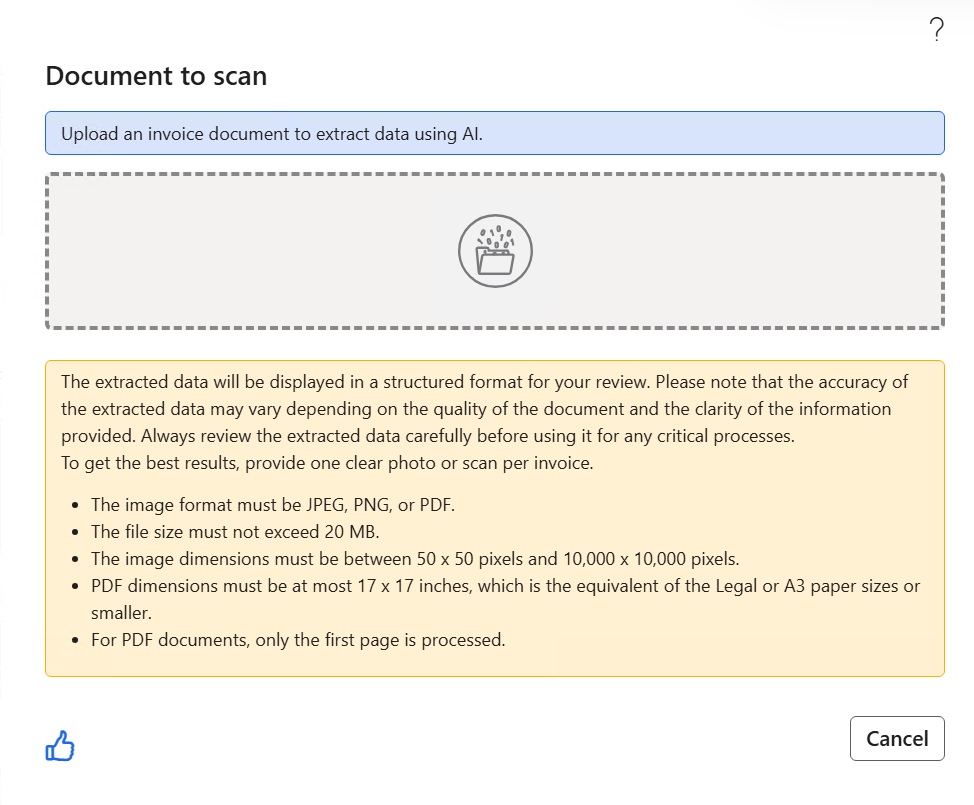
Performance
The chosen azure location impact on the performance of this tool. On average, We noticed on average about 4-10 seconds for Document intelligence
Larger files will take longer to upload and scan, regardless of scanning only the first page.
Document Intelligence
Intro
Document intelligence leverages Azure AI Document intelligence (formerly Form Recognizer), a cloud-based Azure AI service that uses advanced machine learning and OCR to automatically extract text, tables, structures, and key-value pairs from PDFs, images, and forms. It transforms unstructured data into actionable, structured data, enabling automated workflows and intelligent document processing. This feature leverages custom extraction models.
For more information, see:
See AI Document Intelligence terms of services for latest updates on costs, terms and conditions.
Deployment
This option requires an AI Business Intelligence resource, configured in Eftsure > Parameters > AI > Documents To enable the Document Intelligence feature, your eftsure administrator needs to perform the following steps in your tenant: The following steps should take less than 10 minutes.
The Business Intelligence below has related costs that depends on consumption. See Pricing for more details.
At the time of writing, Microsoft offers the following Pay as You Go options:
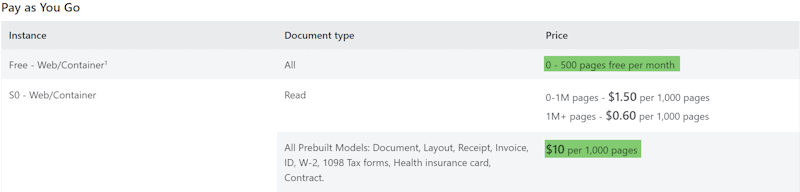 We expect the Free tier with 500 invoices per month should be enough for most customers, as this is the number of payee checks, not related the number of invoices received/processed by the customer.
Azure Portal
Follow the steps in Create a Document Intelligence resource
Note the Url and Keys for the next step.
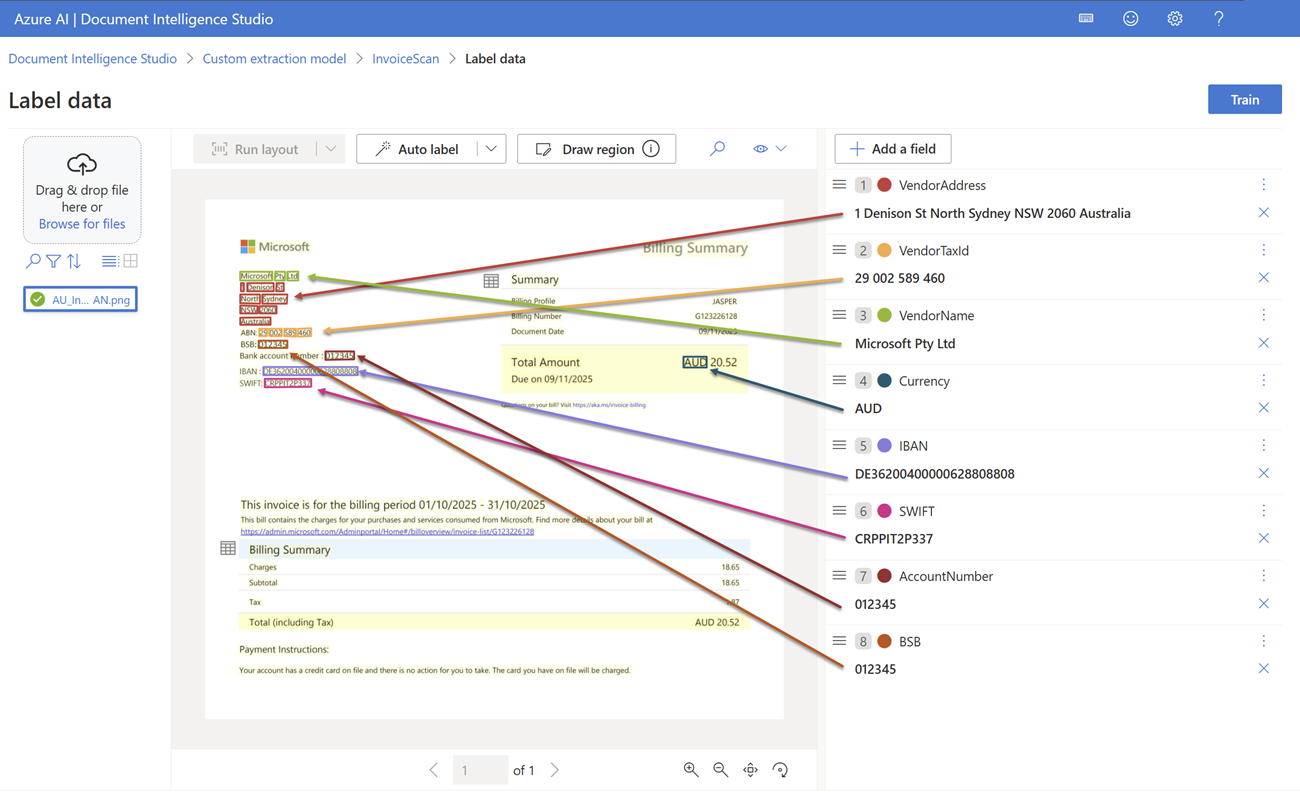
Custom Extraction Model
Your organisation can also train it's own custom extraction model. Once a model has finished training, you can start using it here.
You can learn more about custom extraction models or check out the tutorial videos: Train your first custom model, Labeling best practices, and Balanced dataset for higher accuracy.
This module uses strict naming conventions for model fields, you must respect the same field names in your model.
Eftsure inside Dynamics 365 FO
Go to Eftsure Parameters > AI > Documents, Configure Type to Document Intelligence and configure the previous endpoint and keys into Document Intelligence
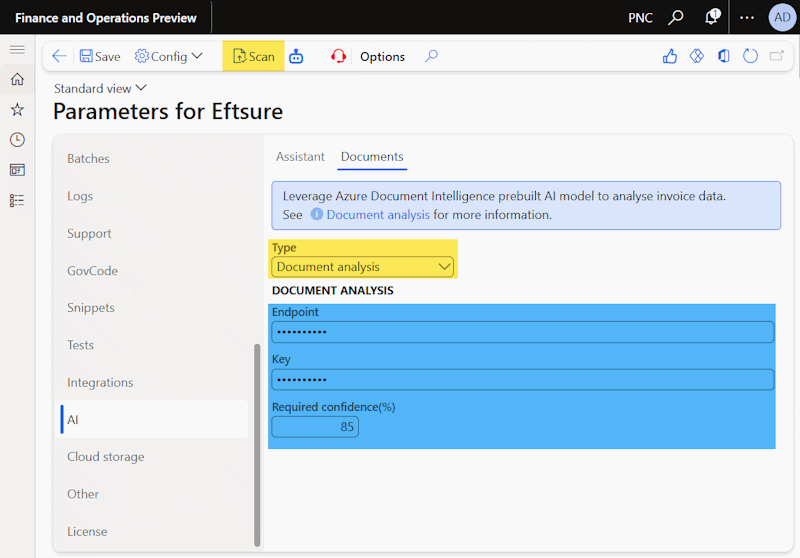
Configure the minimum confidence rate to validate outputs.
If using a custom extraction model, change model type and set model name.
Save and use the Test document in the toolbar to test the newly deployed flow.
Testing
Use the Eftsure Parameters > AI > Documents Tab to test the output of this tools:
Upon analysing any documents, the following additional information will be made available for troubleshooting:
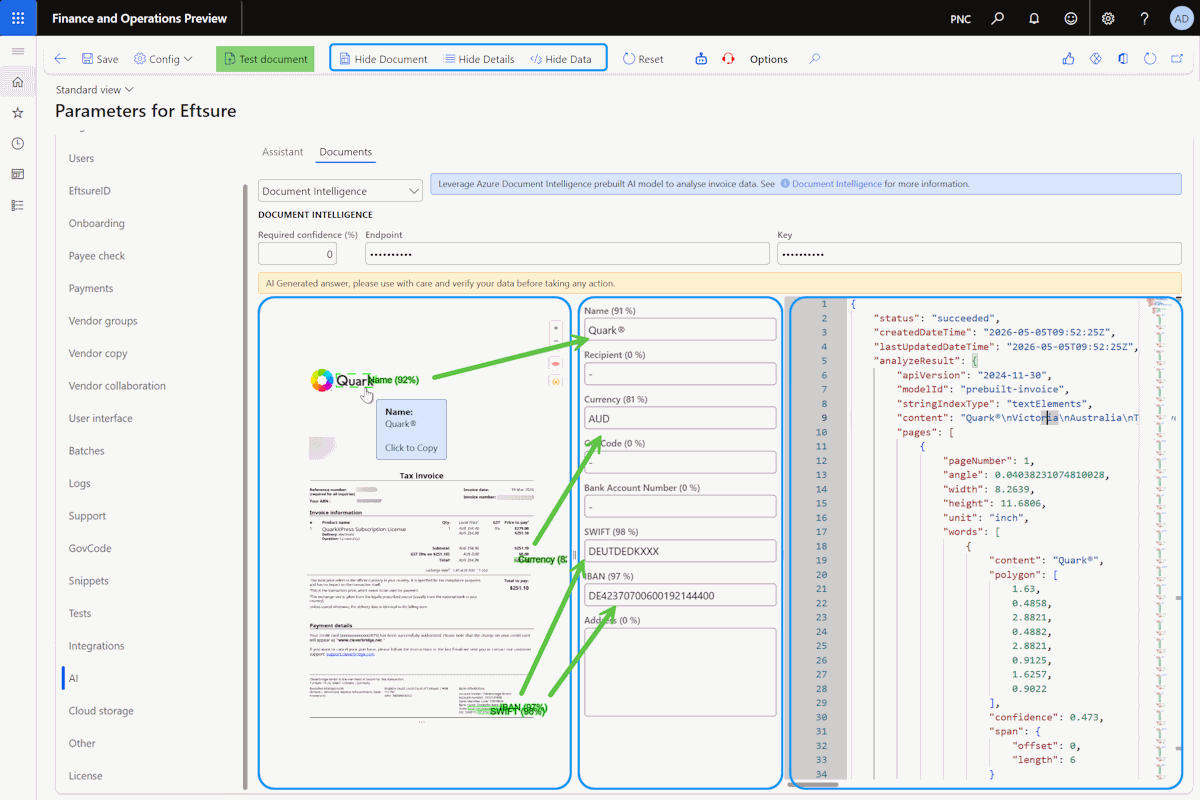
This testing screen contains 3 main testing results pane, from left to right
- Heat Map: Contains all fields as displayed on the document
- Details: Extracted mapped data
- Data: Visualisation of webservice data
Use these tools to validation the solution for your requirements.
Extensions
We provide delegate during Payee Check to allow further enhancements via Event subscription:
[SubscribesTo(formStr(PESPayeeCheck), delegateStr(PESPayeeCheck, onVendTableCreated))]
public static void PESPayeeCheck_onVendTableCreated(VendTable v, PES.Tools.WSContent wsContent)
{
}
[SubscribesTo(formStr(PESPayeeCheck), delegateStr(PESPayeeCheck, onCustTableCreated))]
public static void PESPayeeCheck_onCustTableCreated(CustTable v, PES.Tools.WSContent wsContent)
{
}
The results of the document intelligence are stored in the form's response member as a PES.AI.DocumentIntelligence.DocumentResult Object, and can be used for further processing, or creating matching vendor purchase order / invoice... Let's consider the following example:
using System;
using System.Text.Json;

[SubscribesTo(formStr(PESPayeeCheck), delegateStr(PESPayeeCheck, onVendTableCreated))]
public static void PESPayeeCheck_onVendTableCreated(VendTable v, PES.Tools.WSContent wsContent)
{
    //Example for parsing  Business Intelligence data
    JsonDocument document = JsonDocument::Parse(wsContent.GetWSContent());
    JsonElement root = document.RootElement;
    LogisticsPostalAddress LogisticsPostalAddress;

    if (root.GetProperty("analyzeResult").ValueKind != JsonValueKind::Undefined)
    {
        JsonElement analyzeResult = root.GetProperty("analyzeResult");
        if (analyzeResult.GetProperty("documents").ValueKind != JsonValueKind::Undefined)
        {
            JsonElement documents = analyzeResult.GetProperty("documents");
            if (documents.GetArrayLength() > 0)
            {
            // ... TL;DR
            }
        }
    }
}