
Eftsure inside Treasury Automation Suite
Treasury Automation Suite is sold separately, click Here to request a demo
Eftsure inside Treasury Automation Suite is sold as an option to Eftsure inside Dynamics 365 F&O
Introduction
This section details the features of the Treasury Automation Suite and Eftsure inside Dynamics 365 for Finance and Operations extension. The purpose of this extension is to prevent fraudulent payments when paying with Treasury Automation Suite.
The video below demonstrates how to use Eftsure for payment journals using Treasury Automation Suite.
- A payment journal is opened with existing lines
- The payment journal is validated using Eftsure and Treasury Automation Suite
- Payment fails with Treasury Automation Suite until journal is 100% green
- Exception list indicate validation issues
- Troublesome payment lines are deleted for later re-processing
- Payment is no longer blocked when payment journal is 100% green
Before Validation
Before Eftsure validation, any payment journal line will have the verification status set to None. Attempting to pay any of these lines will not be allowed, and result in an error logged into the Treasury Automation Suite Exception List.
Validation
The same Eftsure validation runs during on Validate. This process runs in the background, in parallel to standard validation. Eftsure is contacted to check all the matching payment lines and returns an autorisation status per line.
Validation can be achieved via:
Validate > Validatefor standard validationValidate > Eftsure > Paymentsfor eftsure only validation- Payment journal Eftsure main icon in top right corner for eftsure only validation.
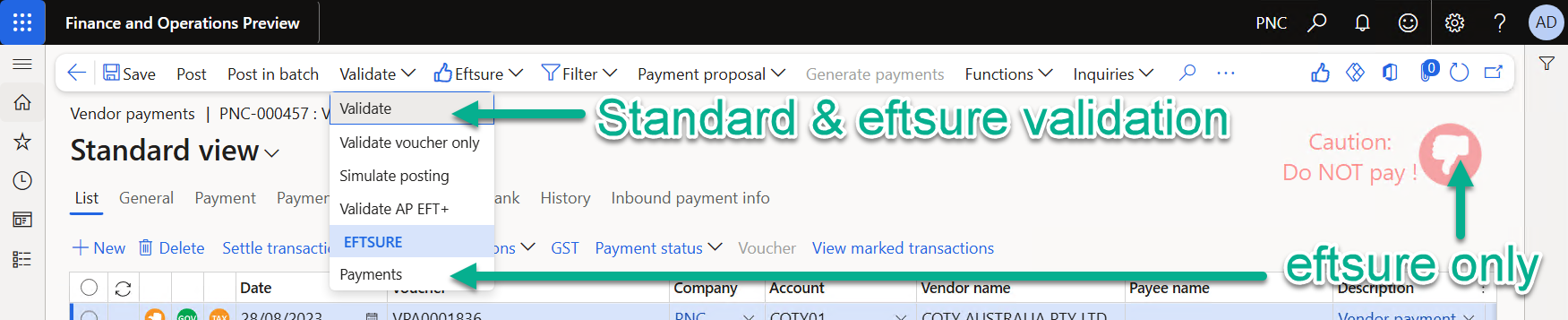
During eftsure validation, any errors will be logged into the Treasury Automation Suite Exception List.
Exceptions
Any validation exceptions will be added into the Treasury Automation Suite Exception List, available in the toolbar of the payment journal screen:

This screen will now contain validation errors from BOTH Eftsure and Treasury Automation suite.
View mode
A new Advanced / Normal display button is added at the front of the toolbar to further improve readability.
| Advanced mode | Normal mode |
|---|---|
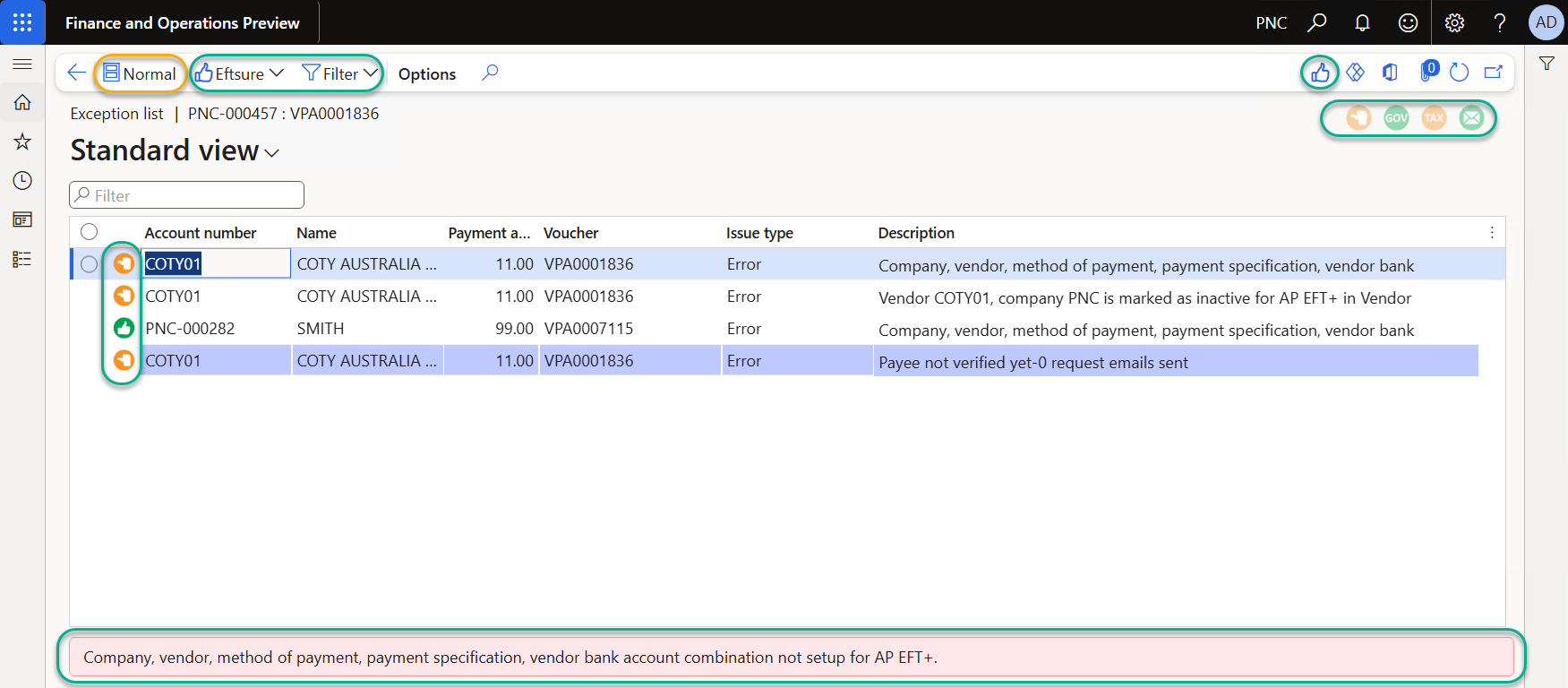 | 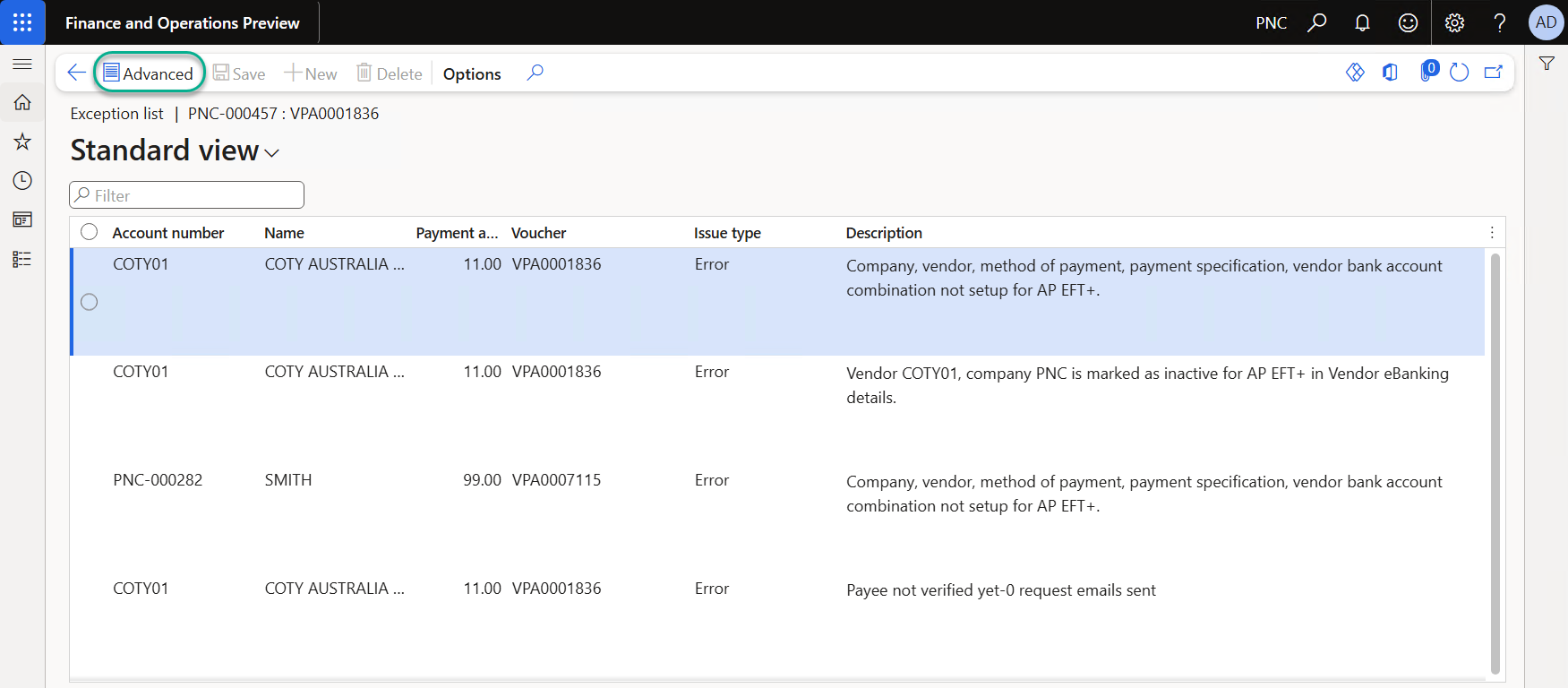 |
| The Advanced mode shows all errors on a minimized single line This screen follows Eftsure enabled forms user interface, using menues, icons, filters, preview parts, buttons... This extended user interface should assist the end-user to fix exceptions with improved visibility, with Eftsure validation errors displayed in a light blue background. | The Normal mode returns to the original Exception list mode |
Links
Truvio Treasury Automation Suite is available on AppSource
 Truvio
 SKSoft
Availability
Eftsure inside Treasury Automation Suite is available as a licensed option since v5.45.47.1779